writing
Building RemoBoard: Typing on a Phone from a Computer远程输入法 RemoBoard 发布:用电脑键盘给手机打字
· Building tools & products
Translated from Chinese — .
On this page
This article is a bit outdated. You can read the new article Remote Keyboard New Version Released: Type on Your Phone Using a Browser
Remote Keyboard (Remote Keyboard, or Remoboard) is a keyboard app that lets you type on your phone using your computer. It consists of a computer side and a phone side. When typing, the computer side first connects to the phone side via IP address or Bluetooth, then you type in the app on the computer side, the text is sent to the phone side, and the keyboard on the phone side performs the simulated input.
In short, this makes “typing faster”. The phone side supports iOS and Android, and the computer side supports macOS and Windows.
Usually we don’t need remote input, but in the following scenarios Remote Keyboard might help:
Scenarios
Scenario 1:
An app only has a phone version, no computer version (or you don’t want to buy the computer version, ha), and using this app requires “a lot of text input work”.
- For example, the DayOne journaling app on iOS. I bought the iOS version but don’t want to buy the macOS version, so I can use Remote Keyboard to write journal entries day to day.
- Another example is WeChat chatting. Many companies don’t allow installing the WeChat desktop client on work computers, so Remote Keyboard can speed up chatting. (Finish chatting faster, get back to work faster.) (For me, occasionally an online friend privately asks a question, and short text can’t explain it clearly — I want to answer but don’t want to type it all. With Remote Keyboard, I can type quickly.)
- Paired with the excellent Android text-writing app “纯纯写作” (Pure Writer), it can also speed up writing.
Scenario 2:
The phone side has quite a few excellent programming environments, such as JSBox, Pythonista, and the recently released Robomaster (controlling RoboMaster S1 with Python). Using Remote Keyboard, you can do phone-side programming more conveniently.
Download
Phone side
- iOS App Store
- Android Coolapk or Google Play Store
Computer side
- macOS GitHub Release or Baidu Cloud
- Windows GitHub Release or Baidu Cloud
How to Use
Since the phone side has iOS and Android, and the computer side has macOS and Windows, there are four combinations: iOS+macOS / iOS+Windows / Android+macOS / Android+Windows. Since the usage is basically the same, here I’ll mainly explain using iOS/Android+macOS as the example, and the usage of the other combinations can be inferred by analogy.
Phone Side Installation
(1) Download the app from the phone-side download link above.
(2) Configure the keyboard.
iOS platform:
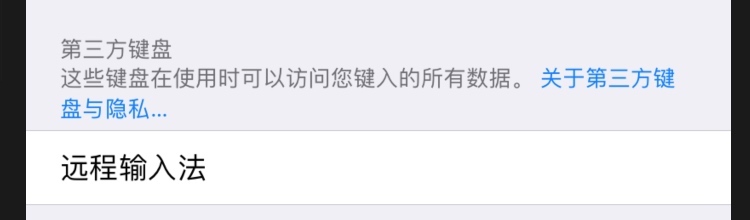
Open Settings > General > Keyboard > Keyboards > Add New Keyboard and select Remote Keyboard.
 After adding it, tap Remote Keyboard again and enable
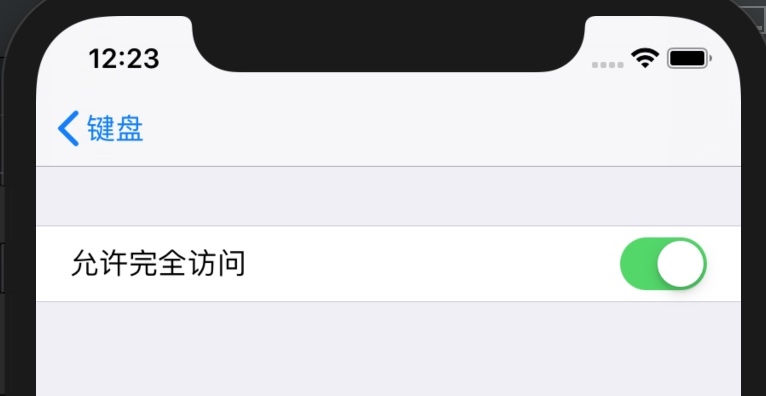
Allow Full Access.
Android platform:
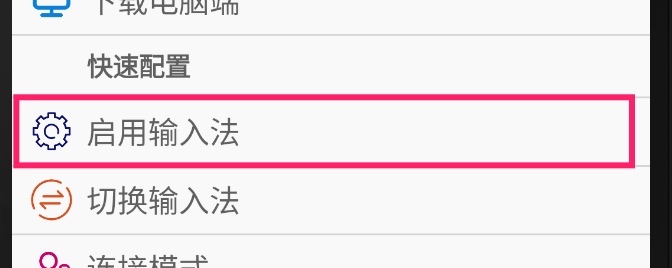
After opening the app, tap Enable Keyboard, then enable it on the next screen.

Computer Side Installation
macOS side:
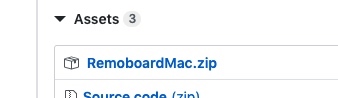
Download RemoboardMac.zip from here.
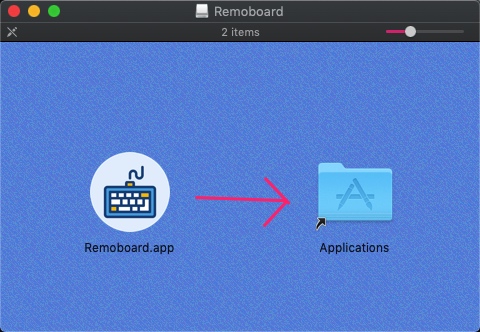
Unzip RemoboardMac.zip, double-click Remoboard.dmg, and drag Remoboard.app into Applications.
Windows side:
Download RemoboardWindows.zip from here.
After unzipping, double-click to install. After installation completes, there will be a shortcut on the desktop.
iOS Usage
Note in advance: to simplify the setup steps, first make sure both the phone and the computer are connected to Wi-Fi.
(1) On the phone, open any app where you can enter text, and long-press the bottom-left corner to switch to Remote Keyboard.
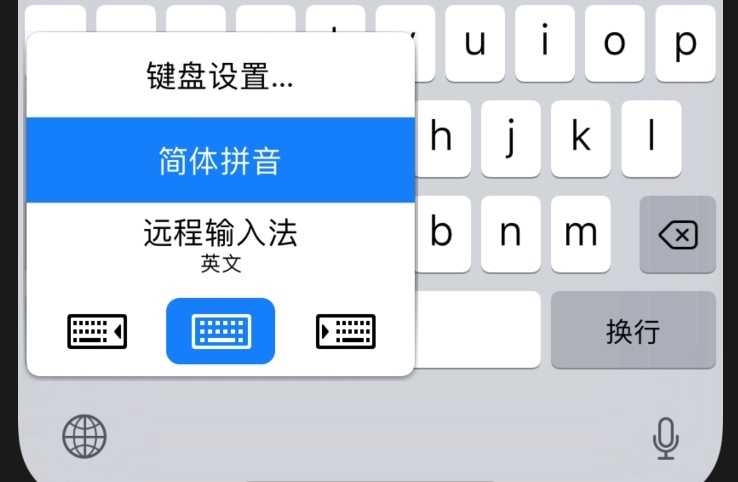
Now, Remote Keyboard will display a connection code, as well as an IP address.
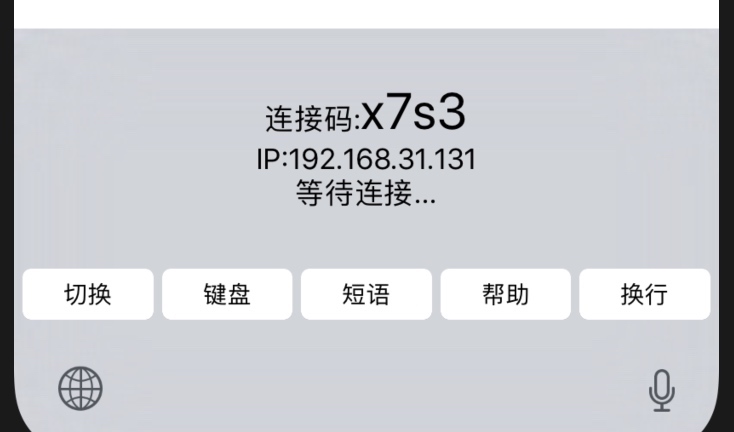
(2) Open Remote Keyboard on macOS.

Enter the connection code shown on the phone, then click “Connect”. If everything is normal, the connection succeeds. If the connection fails, please check whether the phone and computer are connected to the same local network (the computer can ping the phone’s IP address).

The phone will correspondingly show as Connected — start typing :)
Android Usage
(1) On Android, when entering text, switch to Remote Keyboard.
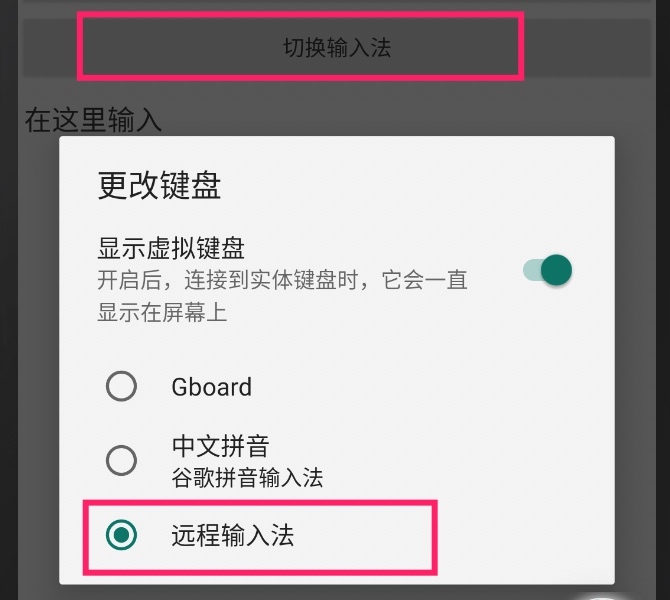
It also shows a connection code; enter it on the computer side to connect.
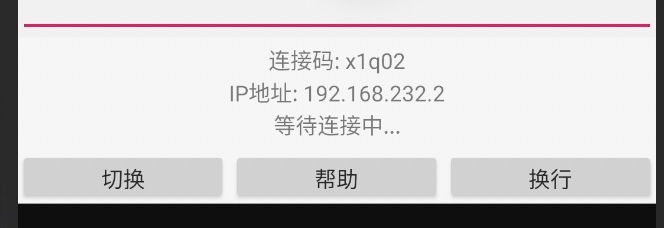
(2) Open Remote Keyboard on macOS.
Enter the connection code shown on the phone, then click “Connect”. If everything is normal, the connection succeeds. If the connection fails, please check whether the phone and computer are connected to the same local network (the computer can ping the phone’s IP address).
Official Website
OK, those are the basic features. There are also some tricks and configurations, which you can find below.
Here’s the official website tutorial: https://remoboard.app/zhcn/
Input Modes
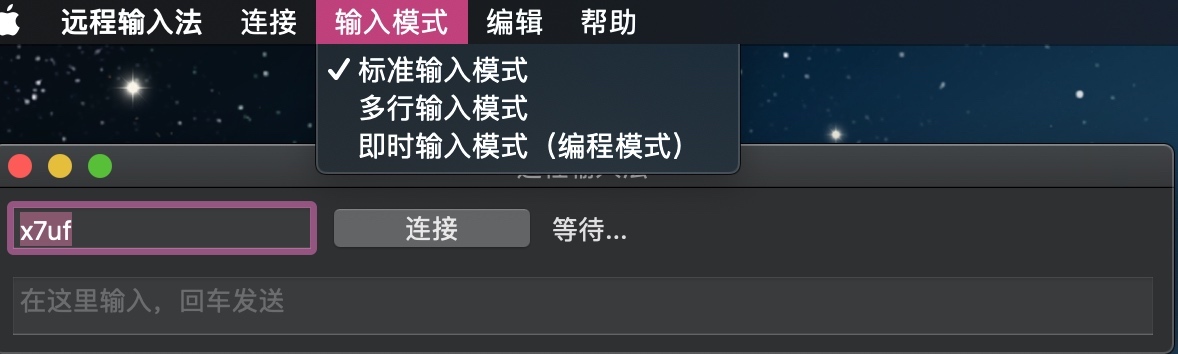
(1) Standard input mode
In this mode you can type “one line of text”, then “press Enter to send”.

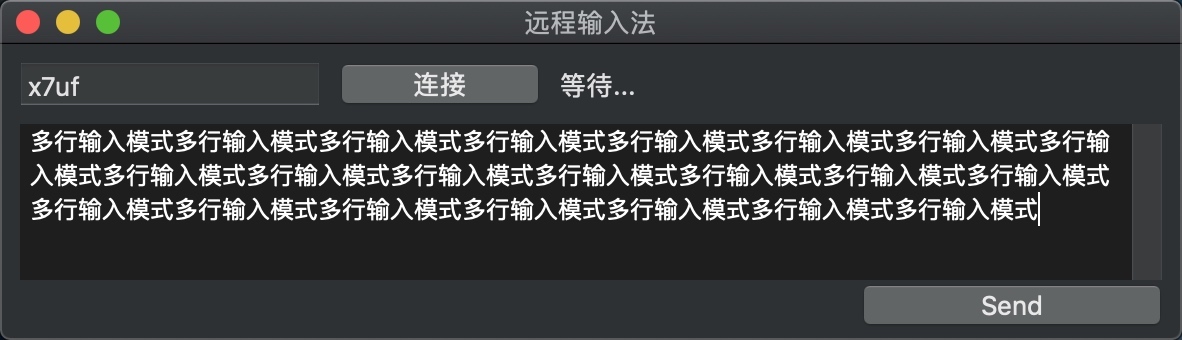
(2) Multi-line input mode
In this mode, you can “type or paste multiple lines of text” and “click a button” to send.
(3) Instant input mode (programming mode)
In this mode, text is sent as you type, which is great for some phone-side programming apps. Personally I think this mode is quite interesting and might suit apps like JSBox or 纯纯写作 (Pure Writer).

Connection Modes
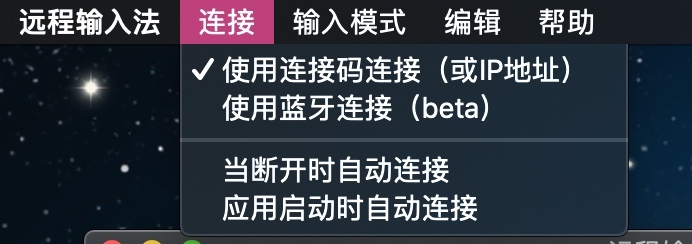
There are two connection modes:
(1) Connection code or IP address mode. (The connection code is essentially another representation of the IP address.)
(2) Bluetooth mode. (It may not be stable enough right now; if there are problems, restart the computer side — it’s basically usable, ha.)
In most cases, the connection code is good enough, but on some company intranets, due to security policy configuration, the phone and computer can’t connect to each other (can’t ping). In that case you can use Bluetooth mode.
Free
Yes, all features are currently free.
Although development took me quite a lot of time, I personally still feel it’s a niche need. I can’t estimate exactly how many people need this app, so I’ve decided to make all features free for now. If there are special new features in the future, I might consider an in-app purchase model.
Development Plan
(1) Usability: crashes still occasionally appear, especially on the Android and Windows sides. In the future I’ll gradually refine and optimize as I use it myself.
(2) WEB connection mode: in some situations it’s inconvenient to download the computer client, so we could consider making the phone act as a small WEB server. When remote input is needed, you’d access the phone’s WEB server to send text. This is also an interesting way to implement remote input.
(3) Two-way message transmission: currently only “the computer sends text to the phone”. In the future I might consider doing it “the other way around” to implement some interesting features.
History
Last year I developed a USBKeyboard. This keyboard required the phone and computer to be connected via “USB” in order to type. At the time, some online friends asked whether it could support “wireless input”, so on and off this year I developed this “Remote Keyboard”.
Recently I also happened to be learning Android development, so all four platforms — iOS/Android/macOS/Windows — ended up being supported.
当前文章有点儿过时,可以看新文章 远程输入法新版发布,用浏览器给手机打字
远程输入法 (Remote Keyboard 或 Remoboard )是一个输入法应用,可以实现使用电脑给手机打字。它包含电脑端和手机端两部分,输入时,电脑端先通过IP地址或者蓝牙连接手机端,然后在电脑端的应用中打字,文字会被发送到手机端,手机端的输入法完成模拟输入。
简单来说,这样「打字更快」。手机端支持iOS和Android,电脑端支持macOS和Windows。
通常情况下我们并不需要远程输入,但可能在以下场景中,远程输入法可以帮上忙:
场景
场景一:
一款应用只有手机版本,没有电脑版本(或者不想购买电脑版本哈),而这个应用的使用需要「大量的文字输入工作」。
- 例如iOS平台的DayOne日记应用,我购买了iOS版本但不想购买macOS版本了,平时就可以用远程输入法来写日记。
- 又例如微信聊天,很多公司的工作电脑是不让安装微信电脑端的,此时用远程输入法可以加快聊天。(快点聊完,快点回到工作)(对我来说,偶尔会有网友私聊问问题,简短的文字又不能表述清楚,我是想回答又不想回答,有了远程输入法,就能快速打字啦)
- 搭配Android平台优秀的文本写作应用「纯纯写作」,也是可以加快写作的速度。
场景二:
手机端有不少优秀的编程环境,例如JSBox、Pythonista,以及最近新出的Robomaster(使用Python控制RoboMaster S1),使用远程输入法,可以比较方便的完成手机端编程。
下载地址
手机端
- iOS AppStore
- Android 酷安 或 Google PlayStore
电脑端
- macOS GitHubRelease 或 百度云
- Windows GitHubRelease 或 百度云
使用方法
由于手机端有iOS和Android,电脑端有macOS和Windows。因此使用组合有四种,iOS+macOS /iOS+Windows / Android+macOS / Android+Windows。由于使用方式基本一样,这里就主要以iOS/Android+macOS为例讲解,其他组合的使用方法可以类推。
手机端安装
(1)从上文的手机端下载地址,下载应用。
(2)对输入法进行配置。
iOS平台:
打开 设置>通用>键盘>键盘>添加新键盘,选择远程输入法。
添加后,再次点击远程输入法,启用允许完全访问
Android平台:
打开应用后,点击启用输入法,然后在下一界面启用。
电脑端安装
macOS端:
在 这里 下载 RemoboardMac.zip
解压 RemoboardMac.zip,双击 Remoboard.dmg ,把Remoboard.app拖入Applications。
Windows端:
在 这里 下载 RemoboardWindows.zip
解压后,双击安装,安装完成后电脑桌面会有快捷方式。
iOS使用
提前注意哈:为了简化上手步骤,先确保手机和电脑都连接到了Wi-Fi
(1) 在手机上,打开任意可以输入文字的应用,长按左下角切换到远程输入法
现在,远程输入法会显示一个连接码,以及IP地址。
(2) 打开macOS上的远程输入法
输入法手机上显示的连接码, 然后点击「连接」. 如果一切正常,则连接成功。如果连接失败,请检查手机和电脑是否连接在同一个内网中(电脑可以ping通手机的IP地址)。
对应的手机上会显示 已连接,打字啦 :)
Android使用
(1) Android在输入时,切换到远程输入法。
同样显示连接码,在电脑端输入连接即可。
(2) 打开macOS上的远程输入法
输入法手机上显示的连接码, 然后点击「连接」. 如果一切正常,则连接成功。如果连接失败,请检查手机和电脑是否连接在同一个内网中(电脑可以ping通手机的IP地址)。
官网
好了,基本功能就这些了。还有一些玩法和配置,可见下文。
这是官网教程 https://remoboard.app/zhcn/
输入模式
(1) 标准输入模式
这种模式下可以输入「一行文字」,然后「按回车发送」。
(2) 多行输入模式
这种模式下,可以「输入或粘贴多行文字」,「点击按钮」发送。
(3) 即时输入模式(编程模式)
这种模式下,文字会边打边发送,很适合一些手机端的编程应用。个人认为这个模式还是比较有意思的,可能会适合JSBox或纯纯写作这样的应用。
连接模式
有两种连接模式:
(1) 连接码或IP地址模式。(连接码本质上是IP地址的另一个表示方式)
(2) 蓝牙模式。(目前可能不够稳定,有问题重启电脑端,基本够用哈)
通常情况下,连接码就足够了,但可能在一些公司的内网,由于安全策略的配置,手机和电脑相互不能连接(ping不通),这时候就可以使用蓝牙模式。
免费
是的,目前所有功能免费。
虽然开发耗费了我挺多时间,但自我感觉仍然是小众需求,到底有多少人需要这个应用,我也无法估计。因此决定目前所有功能免费。如果未来有新增特殊功能,可能考虑内购方式。
开发计划
(1)易用性:目前闪退还是偶尔出现,尤其是Android和Windows端,未来我会随着自己的使用,逐渐完善和优化。
(2)WEB连接模式:有些场合不太方便下载电脑端,因此可以考虑手机作为一个小型WEB服务器,需要远程输入时,访问手机的WEB服务器来发送文字。这也是一个有趣的实现远程输入的方法。
(3)双向传输消息:目前仅「电脑向手机发送文字」,未来可能考虑「反过来」实现一些有趣的功能。
历史
去年我开发了一个USBKeyboard,这个输入法需要手机和电脑通过「USB」连接才可以输入,当时就有网友说能否支持「无线输入」,于是断断续续今年就开发了这个「远程输入法」。
最近又恰逢我学习Android开发,因此iOS/Android/macOS/Windows四个平台就都支持了。