writing
Building QVKeyboard: Typing on iOS from a MacQVKeyboard 发布:通过 macOS 用键盘给 iOS 打字的输入法
· Building tools & products
Translated from Chinese — .
On this page
USB Keyboard was formerly named QVKeyboard; the rename was perhaps to make it easier to remember and search for.
USB Keyboard is an input method app. After connecting your iPhone to a Mac via USB, you can type on the Mac and have it appear on the iPhone.
Scenarios
I ran into the following two scenarios:
- I often chat about tech with people on WeChat, but a lot of technical content requires typing a great deal, and typing on a phone is really uncomfortable for me. In some cases the computer isn’t suitable for, or I don’t want to, install the WeChat Mac client. I want to finish chatting quickly and get back to work quickly.
- Day One is a nice app. I bought the mobile version, but sometimes when I want to write a lot of content, typing on the phone is too much of a hassle.
So I looked for some ready-made apps — they were either too expensive, too complicated to pair, unstable, or didn’t support Chinese. Until one day I was browsing GitHub and saw an ancient library, PeerTalk. By connecting a USB cable you can pair instantly, skipping the process of entering an IP, searching over Bluetooth, etc. It’s simple, direct, and fast.
Environment
Currently the USB Keyboard mobile side is iOS-only, and the PC side is macOS-only. In the future I may adapt it to Android and Windows as needed.
Installation
iOS App :
- https://itunes.apple.com/cn/app/qvkeyboard/id1439106456
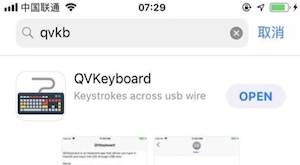
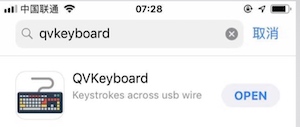
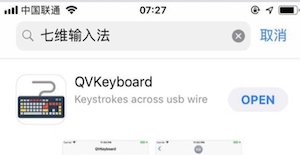
- Search for
qvkb,usbkeyboard, orqvkeyboard— any of them will find it.
macOS Client :
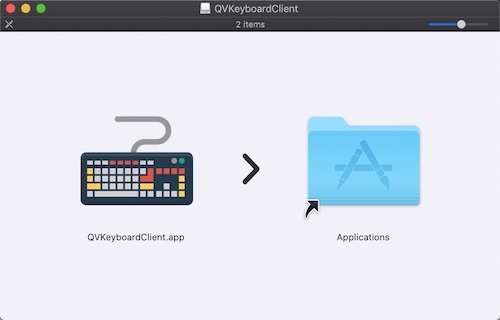
- GitHub https://github.com/qvkeyboard/qvkeyboard/releases
- Baidu Cloud https://pan.baidu.com/s/1lRPMJcy22oSSiUDhM5yyAw
How to Use
- After installing USB Keyboard on iOS, open “Settings - General - Keyboard - Keyboards - Add New Keyboard”, and tap “USB Keyboard” in the “Third-Party Keyboards” section.
- Tap USB Keyboard again, tap “Allow Full Access”, then “Allow”.
- Open any app screen where you can enter text, and switch the input method to USB Keyboard.
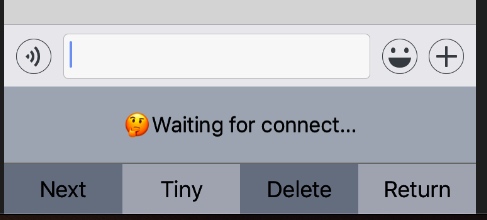
- Now the keyboard will display as follows:
- Open the macOS side.
The icon looks like this:
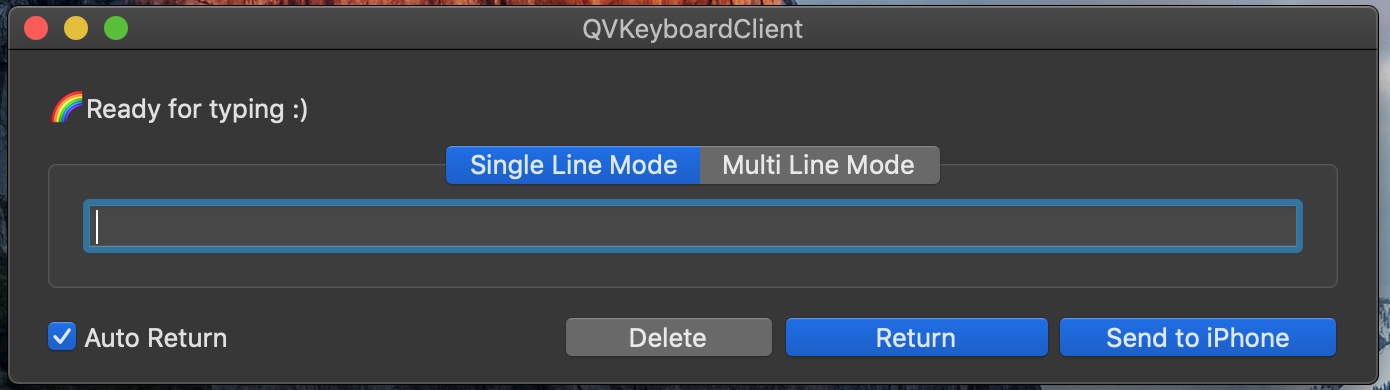
After opening, the interface looks like this:
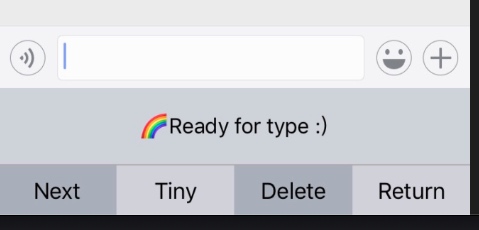
- At this point, if iOS and macOS connect successfully, both will display 🌈Ready for type:)
- You can now type in the input box. Pressing Enter will send. Enjoy it :)
Two Input Modes
- Single-line mode: In single-line mode, Enter sends immediately. Generally suitable for chatting, etc.
- Multi-line mode: In multi-line mode, you need ⌘↩ to send. Generally suitable for pasting large amounts of text into Moments, etc.
Shortcuts
The following three buttons on the macOS client have shortcuts, though there are no on-screen hints yet:
- Delete : ⌥⌫
- Return : ⌥↩
- Send to iPhone (send the current content to iPhone): ⌘↩
The Delete Key
When the text box is empty, continuing to press the Delete key will also send Delete to iOS.
Privacy
Because it needs to communicate with the Mac side, “Allow Full Access” must be enabled. But for an input method, once full access is allowed, it inevitably introduces security risks. Although I haven’t done anything malicious, the very existence of trust brings in the human factor.
How It Works
The principle is actually very simple — see the open-source library https://github.com/rsms/peertalk
Code
Emmm… not open-sourcing this one.
Summary
Because the review process involved coordinating multiple devices, I even recorded a video specifically for it, posted at https://youtu.be/-vr_rHpgwAM — my spoken English is pretty poor, haha.
Developing such a simple app also takes quite a bit of time, so in the future do support independent developers more. Also, in order to develop this app, I went nearly a month without updating the official account. Now it’s finally released, and the next step is to keep learning and sharing.
USB Keyboard 原名 QVKeyboard,改名或许是为了更容易记录和搜索
USB Keyboard 是一个输入法应用,通过USB连接iPhone到Mac后,可以实现在Mac端打字,iPhone上输入。
场景
我遇到了下面两种场景:
- 经常需要在微信上和别人聊技术,但很多技术的内容又要打好多字,手机打字实在不习惯。某些情况下,电脑又不适合或者不想安装微信的Mac端。想快速聊完,快速干活儿。
- Day One是个不错的App,购买了手机端,但有时候想写的内容多的时候,又是觉得手机打字太麻烦。
于是我找了一些现成的App,要么太贵,要么配对太复杂,要么不稳定,要么不支持中文。直到有一天逛GitHub看到一个古老的库PeerTalk。通过连接USB线可以立即实现配对,省去了输入IP、查找蓝牙等配对的过程,可谓是简单直接迅速。
环境
目前USB Keyboard移动端只有iOS,PC端只有macOS。未来可能会根据需要适配Android和Windows平台。
安装
iOS App :
- https://itunes.apple.com/cn/app/qvkeyboard/id1439106456
- 搜索
qvkb或usbkeyboard或qvkeyboard都可以到。
macOS Client :
- GitHub https://github.com/qvkeyboard/qvkeyboard/releases
- 百度云 https://pan.baidu.com/s/1lRPMJcy22oSSiUDhM5yyAw
使用方法
- iOS上USB Keyboard安装后,打开“设置 - 通用 - 键盘 - 键盘 - 添加新键盘“,在”第三方键盘“区域点击”USB Keyboard“。
- 再次点击USB Keyboard,点击”允许完全访问“,然后”允许“。
- 打开任意一个app可输入文字的界面,切换输入法到USB Keyboard。
- 现在键盘会如下显示:
- 打开macOS端
图标如下:
打开后界面如下:
- 此时iOS和macOS如果连接成功,会都显示 🌈Ready for type:)
- 可以在输入框打字啦。回车就会发送。Enjoy it :)
两种输入模式
- 单行模式:单行模式下回车就会发送。一般适用于聊天等。
- 多行模式:多行模式下,需要⌘↩才发送。一般适用于粘贴大量的文字到朋友圈等。
快捷键
macOS客户端下面三个按钮有快捷键,目前还没有界面上的提示:
- Delete (删除键): ⌥⌫
- Return (回车): ⌥↩
- Send to iPhone (发送当前内容到iPhone): ⌘↩
Delete键
当文本框内容为空时,继续按Delete键,也会发送Delete到iOS。
隐私
由于需要和Mac端通讯,必须启用“允许完全访问”。但对于输入法来说,如果允许完全访问了,那就不可避免的带来安全隐患。虽然我啥也没做,但信任的存在就引入了人的因素。
原理
其实原理很简单,见开源库 https://github.com/rsms/peertalk
代码
Emmm…这次不开源了。
总结
审核过程由于涉及多个端配合,还专门录了个视频,放在了 https://youtu.be/-vr_rHpgwAM ,很菜的口语哈。
开发如此简单的App也挺耗费时间的,所以以后还是多多支持一些独立开发者啦。另外为了开发这个App,快一个月没有更新订阅号了,现在终于发布了,下一步继续学习和分享啦。