writing
RemoBoard: Adding Browser-Based Typing远程输入法 RemoBoard 新版发布:用浏览器给手机打字
· Building tools & products
Translated from Chinese — .
On this page
Thanks to:
- SSPai: “Remote Keyboard” New Version Released, Type on Your Phone Using a Browser
- iPlaysoft: Remote Keyboard - A Creative Productivity App That Lets You Type on Your Phone with a Computer Keyboard! Saves the Cost of a Bluetooth Keyboard
- 最美应用 (Most Beautiful Apps): This App Finally Solved a Hassle That’s Bothered Me for So Many Years
- 虚拟框架 (Virtual Framework): Remote Keyboard Is Released, Type on Your Phone Using a Computer
- 小众软件 (Appinn): This Idea Is a Bit Wild: Remote Keyboard, Type on Your Phone Using a Computer
Also thanks to “PriceTag” and other media for the promotion.
Remote Keyboard is a keyboard app that lets you type on your phone using your computer, making phone typing faster. When using Remote Keyboard, the phone displays a URL; visit this URL in a computer browser to start typing. The text entered in the browser is sent to the phone, thereby letting your computer type on your phone.
The phone side supports iOS and Android, and on the computer you just need a browser (so it supports the three platforms macOS/Windows/Linux).
In English systems, Remote Keyboard is displayed as Remoboard, meaning Remote Keyboard.
Usually we don’t need remote input, but in the following scenarios Remote Keyboard might help:
Scenarios
Scenario 1:
An app only has a phone version, no computer version (or you don’t want to buy the computer version, ha), and using this app requires “a lot of text input work”.
- For example, the DayOne journaling app on iOS. I bought the iOS version but don’t want to buy the macOS version, so I can use Remote Keyboard to write journal entries day to day.
- Another example is WeChat chatting. Many companies don’t allow installing the WeChat desktop client on work computers, so Remote Keyboard can speed up chatting. (Finish chatting faster, get back to work faster.) (For me, occasionally an online friend privately asks a question, and short text can’t explain it clearly — I want to answer but don’t want to type it all. With Remote Keyboard, I can type quickly.)
- Paired with the excellent Android text-writing app “纯纯写作” (Pure Writer), it can also speed up writing.
Scenario 2:
The phone side has quite a few excellent programming environments, such as JSBox, Pythonista, and the recently released Robomaster (controlling RoboMaster S1 with Python). Using Remote Keyboard, you can do phone-side programming more conveniently.
Scenario 3:
You can even install the keyboard on an Android smart TV, then visit the input URL in your phone’s browser to speed up text input on the TV.
Download
- iOS App Store
- Android Coolapk or Google Play Store
Quick Start
iOS Quick Start
(1) Download Remote Keyboard from the App Store App Store
(2) Open Settings > General > Keyboard > Keyboards > Add New Keyboard
(3) Tap Remote Keyboard

(4) Keyboard installation complete
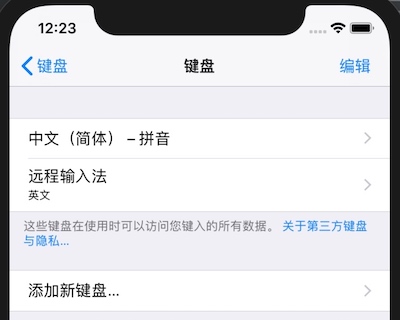
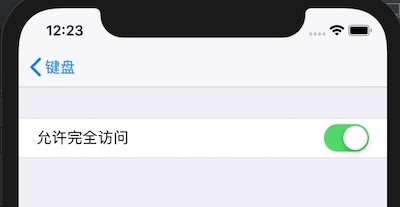
(5) On the screen you just finished, tap Remote Keyboard again and enable Allow Full Access as shown below
(6) Now installation is complete. In a place where you can enter text, switch to “Remote Keyboard” and you’ll see a URL (first make sure Wi-Fi is connected). Open this URL in your computer browser to start typing.
Note:
- You need to make sure the phone and computer are connected to the same network, and the computer can ping the phone’s IP address.
- Enter the full URL shown in the image below in the browser, for example: http://192.168.31.11:7777
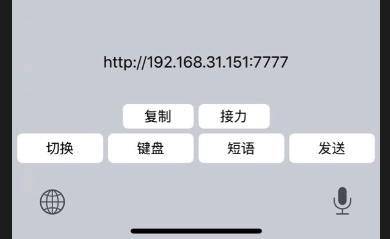
Additional note: if macOS and iOS are logged into the same AppleId, you can use “Copy” and “Handoff” to open the URL on the computer more quickly. See the end of the article.
Android Quick Start
(1) Install from Coolapk or Google Play Store, then open the app and tap Enable Keyboard
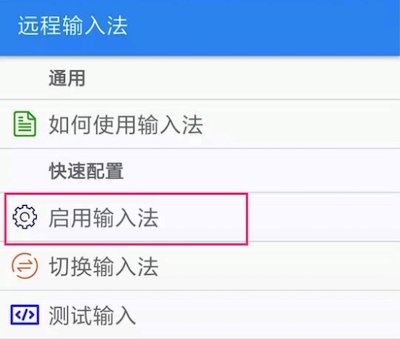

Here it might “prompt to restart” — in most cases just tap “OK” and ignore it.

(2) Switch the keyboard

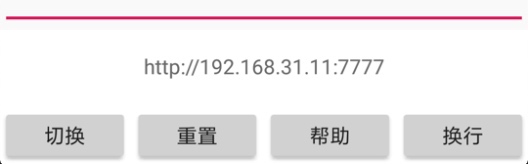
(3) Now installation is complete. In a place where you can enter text, switch to “Remote Keyboard” and you’ll see a URL (first make sure Wi-Fi is connected). Open this URL in your computer browser to start typing.
Note:
- You need to make sure the phone and computer are connected to the same network, and the computer can ping the phone’s IP address.
- Enter the full URL shown in the image below in the browser, for example: http://192.168.31.11:7777
Input Modes
Input Modes
There are three input modes:

(1) Standard input mode
In this mode you can type “one line of text”, then “press Enter to send”.

(2) Multi-line input mode
In this mode, you can “type or paste multiple lines of text” and “click a button” to send.
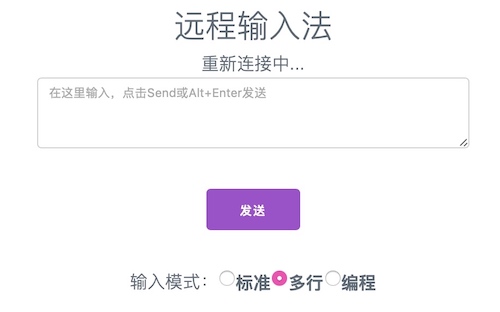
(3) Programming input mode

In this mode, text is sent as you type, which is great for some phone-side programming apps.
Input Tips
In all three input modes, when the input text box content is empty, the following keys are also supported:
- Backspace: delete text on the phone
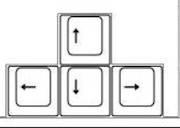
- Left and Right arrows: move the cursor left and right
- Up and Down arrows: move left and right by 20 characters. If there aren’t 20 characters to the left or right on the phone, it won’t move.
Copy and Handoff
The iOS keyboard has “Copy” and “Handoff” buttons. The main use case currently is: iOS paired with macOS, both logged into the “same AppleID”.
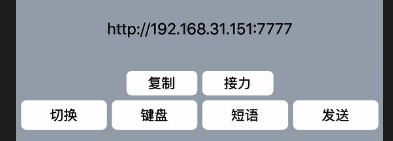
When you tap “Copy”, the iOS clipboard content syncs to macOS. On macOS, open a browser, paste it into the address bar, and you can start typing.
When you tap “Handoff”, due to system limitations, it first jumps to “the main screen of Remote Keyboard”. At this point a “browser icon” appears in the macOS Dock; click it to open the corresponding URL.

Lab
When Remote Keyboard was first released, I wrote an article introducing it. Back then there was no “browser input” method like now — it used the more ancient method of “installing a computer client”, which was more cumbersome to use and “not very stable either”. So in this new version I moved these two connection modes into the “Lab”.
The Lab includes the feature to switch the “connection mode”, which can be switched between “Bluetooth” and “IP” connection modes. Regarding these two modes, the plan is as follows:
- Bluetooth connection mode: will be gradually optimized in the future.
- IP connection mode: about to be deprecated. Depending on the situation, it will gradually be replaced by the Http interface in the Web connection mode.
In short, the features in the “Lab” are not recommended for use for now, ha.
Free
It’s completely free for now, and existing features won’t be charged for in the future either. If possible, I’ll develop some small paid features down the line.
Summary
I hope everyone has fun. If possible, please help recommend it to more friends :)
感谢:
- 少数派:「远程输入法」新版发布,用浏览器给手机打字
- 异次元: 远程输入法 - 用电脑键盘给手机打字的创意效率应用!省蓝牙键盘钱了
- 最美应用: 这款 APP 终于解决了困扰我这么多年的麻烦
- 虚拟框架:远程输入法发布啦,用电脑给手机打字
- 小众软件:这个脑洞有点大:远程输入法,用电脑给手机打字
还有感谢「PriceTag」等媒体的宣传。
远程输入法 是一个输入法应用,可以实现使用电脑给手机打字,让手机打字更快。使用远程输入法时,手机端会显示一个网址,在电脑浏览器中访问这个网址,即可开始输入。浏览器中输入的文字发送到手机,从而实现电脑给手机打字。
手机端支持iOS和Android,电脑上只要有浏览器即可(也就支持macOS/Windows/Linux三个平台了)。
远程输入法在英文系统显示为 Remoboard,即含义为 Remote Keyboard。
通常情况下我们并不需要远程输入,但可能在以下场景中,远程输入法可以帮上忙:
场景
场景一:
一款应用只有手机版本,没有电脑版本(或者不想购买电脑版本哈),而这个应用的使用需要「大量的文字输入工作」。
- 例如iOS平台的DayOne日记应用,我购买了iOS版本但不想购买macOS版本了,平时就可以用远程输入法来写日记。
- 又例如微信聊天,很多公司的工作电脑是不让安装微信电脑端的,此时用远程输入法可以加快聊天。(快点聊完,快点回到工作)(对我来说,偶尔会有网友私聊问问题,简短的文字又不能表述清楚,我是想回答又不想回答,有了远程输入法,就能快速打字啦)
- 搭配Android平台优秀的文本写作应用「纯纯写作」,也可以加快写作的速度。
场景二:
手机端有不少优秀的编程环境,例如JSBox、Pythonista,以及最近新出的Robomaster(使用Python控制RoboMaster S1),使用远程输入法,可以比较方便的完成手机端编程。
场景三:
甚至Android智能电视上也可以安装输入法,然后手机浏览器访问输入网址,加快电视上的文字输入速度。
下载地址
- iOS AppStore
- Android 酷安 或 Google PlayStore
快速上手
iOS 快速上手
(1) 从AppStore下载远程输入法 AppStore
(2) 打开 设置>通用>键盘>键盘>添加新键盘
(3) 点远程输入法
(4) 键盘安装完毕
(5) 再次在刚才完成的界面点击远程输入法,如下图所示启用 允许完全访问
(6) 现在安装已经完成,在可输入文字的地方,切换到「远程输入法」,即可看到一个网址(首先确保Wi-Fi已经连接),在电脑浏览器中打开这个地址,即可开始输入啦。
注意:
- 需要确保手机和电脑连接入一个网络中,电脑上ping通手机的IP地址。
- 浏览器中输入下图完整的网址,例如:http://192.168.31.11:7777
补充:如果macOS和iOS登录了相同的AppleId,则可以使用「复制」和「接力」更快捷的在电脑上打开网址。见文章最后。
Android 快速上手
(1)从 酷安 或 Google PlayStore 安装,然后打开应用,点击启用输入法
这里可能会「提示重启」,一般情况下点击「确定」无视即可。
(2)切换输入法
(3)现在安装已经完成,在可输入文字的地方,切换到「远程输入法」,即可看到一个网址(首先确保Wi-Fi已经连接),在电脑浏览器中打开这个地址,即可开始输入啦。
注意:
- 需要确保手机和电脑连接入一个网络中,电脑上ping通手机的IP地址。
- 浏览器中输入下图完整的网址,例如:http://192.168.31.11:7777
输入模式
输入模式
有三种输入模式:
(1) 标准输入模式
这种模式下可以输入「一行文字」,然后「按回车发送」。
(2) 多行输入模式
这种模式下,可以「输入或粘贴多行文字」,「点击按钮」发送。
(3) 编程输入模式
这种模式下,文字会边打边发送,很适合一些手机端的编程应用。
输入小技巧
三种输入模式中,当输入文本框内容为空时,还支持以下按键:
- 退格键:删除手机上的文字
- 按键左和右:向左 和 向右 移动光标
- 按键上和下:向左 和 向右 移动 20 个字符。如果手机上的左或右不够20个字符,不会移动。
复制和接力
iOS 输入法上会有个「复制」和「接力」按钮,目前的使用场景主要是:iOS配合macOS,且登录了「相同AppleID」。
当点击「复制」时,iOS的剪贴板内容会同步到macOS,在macOS上打开浏览器,粘贴到地址栏打开即可开始输入。
但点击「接力」时,由于系统限制,会先跳转到「远程输入法的主界面」,此时macOS上的Dock上会出现一个「浏览器的图标」,点击即可打开对应的网址。
实验室
远程输入法首次发布时,我写过一篇文章介绍,那时还没有现在「浏览器输入」的方式。使用了更古老的「安装电脑端软件」的方式,使用方式上更麻烦,而且「稳定性也不太好」。因此这次新版本我把这两个连接模式移动到了「实验室」中。
实验室中包含「连接模式」切换的功能,可以切换为「蓝牙」和「IP」连接模式。关于这两个模式,计划如下:
- 蓝牙连接模式:未来会逐步优化。
- IP连接模式:即将废弃。根据情况,逐步替换为Web连接模式中的Http接口。
简单来说,「实验室」中的功能,暂时不建议使用哈。
免费
目前完全免费,现有功能未来也不会收费。如果可能,未来会开发一些小的收费功能。
总结
希望大家玩的愉快,如果可以的话,帮忙推荐给更多朋友使用哦 :)