writing
Running Android on an iPhone: My Experience在 iPhone 上运行 Android 系统的体验
· Debugging & reverse engineering
Translated from Chinese — .
On this page
For the first time in history, the Android system can run on an iPhone. The current version (as of March 6, 2020) only supports the iPhone 7 / 7 Plus. (No requirement on the iOS version.)
Project Sandcastle: Android for the iPhone Project page: https://projectsandcastle.org/
I happened to have an iPhone 7 on hand, so I gave it a try. Let me briefly summarize the steps and share them with everyone. Ideally the steps are as follows, but due to macOS’s security mechanisms, steps 2 and 3 aren’t quite so smooth and pleasant.
- Jailbreak using checkra1n
- Run start_mac.sh
- Run setup_mac.sh
Jailbreak
Download https://checkra.in/ and jailbreak by following the steps. (Connect the iPhone to the Mac via USB.)
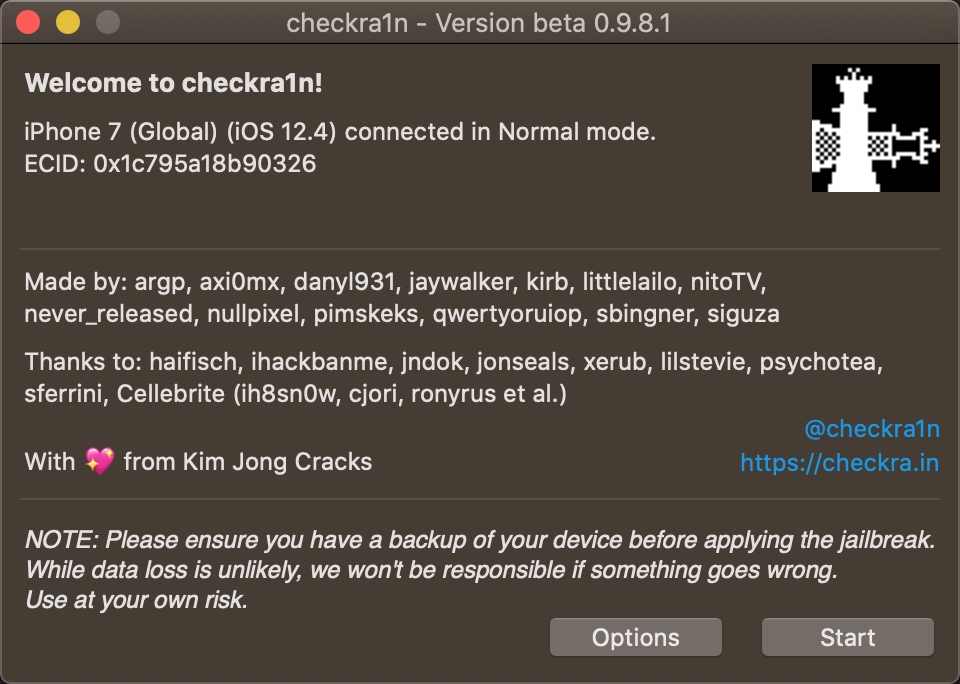
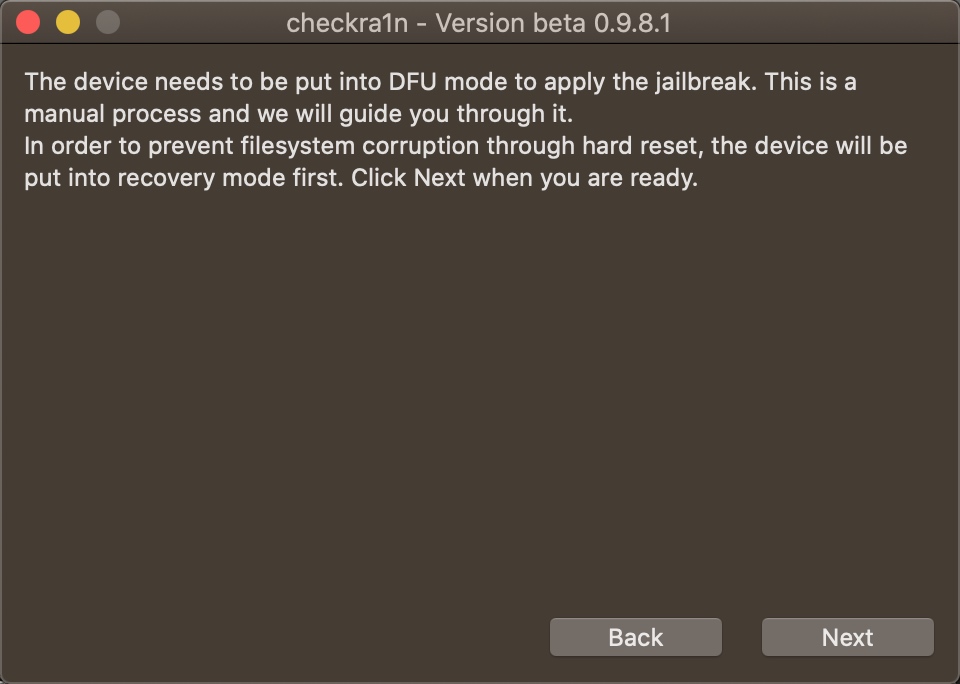
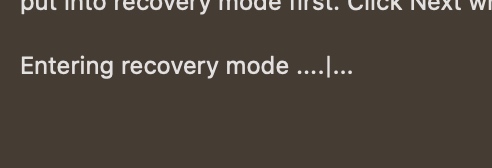
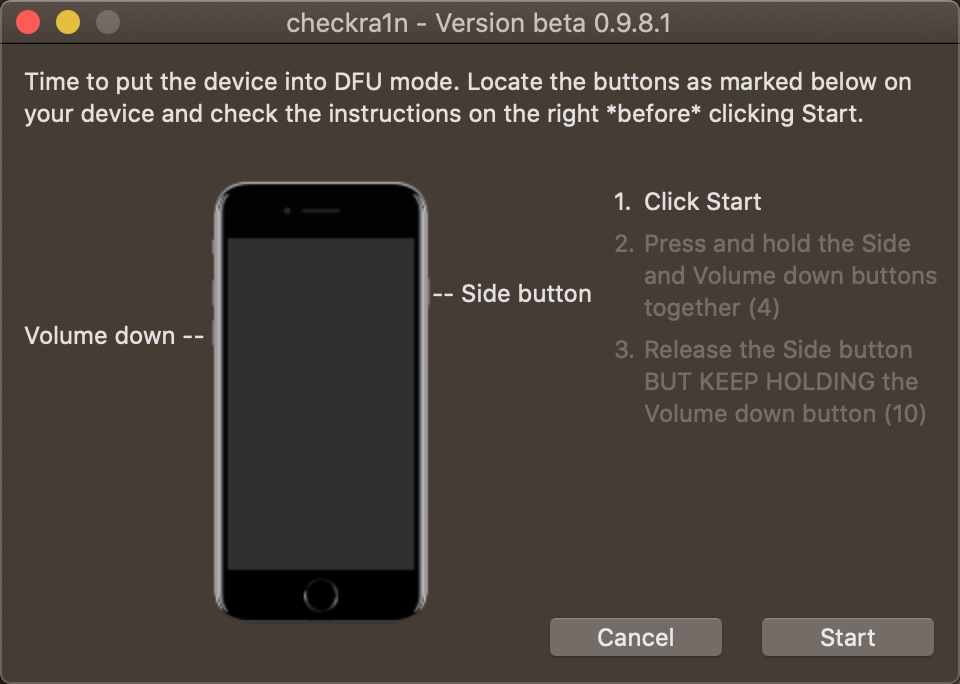
After jailbreaking, boot into iOS.
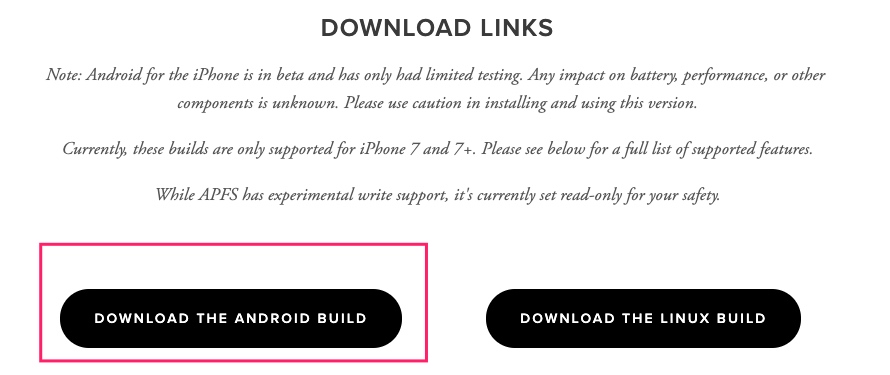
Download the Android Build
Download the Android Build at https://projectsandcastle.org/status.
Unzip the downloaded file.
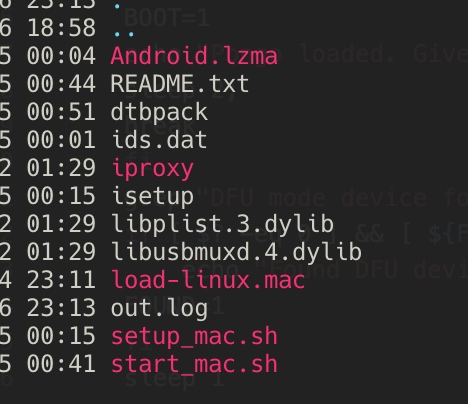
setup_mac.sh
Connect the iPhone to the Mac via USB. Ideally, you just run ./setup_mac.sh on macOS. But it didn’t go smoothly for me. The bundled iproxy and the two dynamic libraries’ signatures still need to be trusted on first run. But since the functionality is really just iproxy’s functionality, let’s manually run the steps inside setup_mac.sh below.
You can first ssh into iOS to make sure the manual connection works. Then refer to the steps below.
(1)
iproxy 2222 44
(2) Copy isetup to iOS at /tmp/setup.sh
scp -P2222 -o StrictHostKeyChecking=no isetup root@localhost:/tmp/setup.sh
(3) Two approaches:
One, use a VPN. Or, modify the network connectivity test address in setup.sh — for example, test against baidu, which is specifically for checking whether the network works (looks like foreigners use google for the equivalent test).
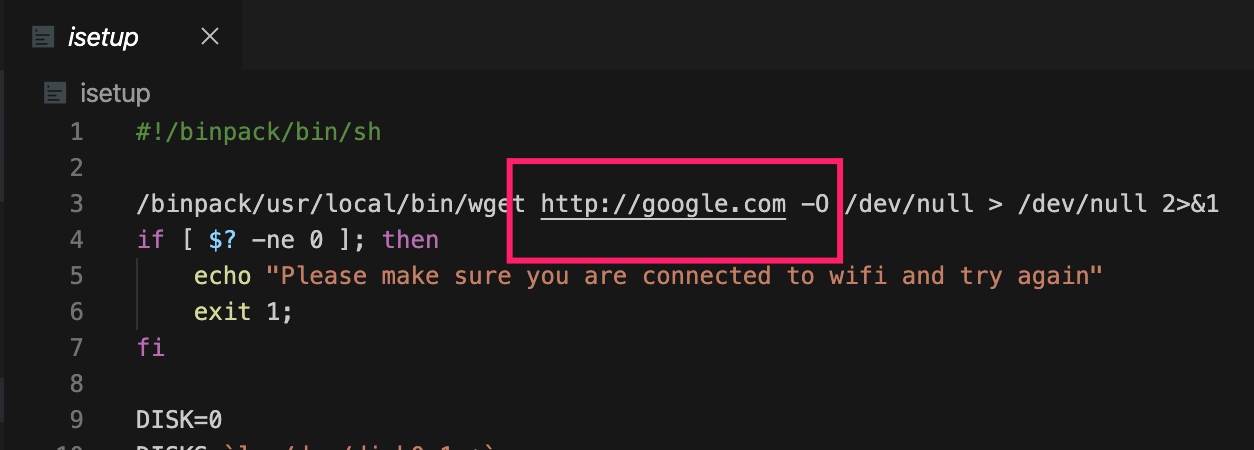
I recommend the VPN approach, because this script downloads a 470MB file. Without a VPN, downloading this file on my home Wi-Fi is very slow; with a VPN it seemed to finish in a few minutes.

(4) Run /tmp/setup.sh
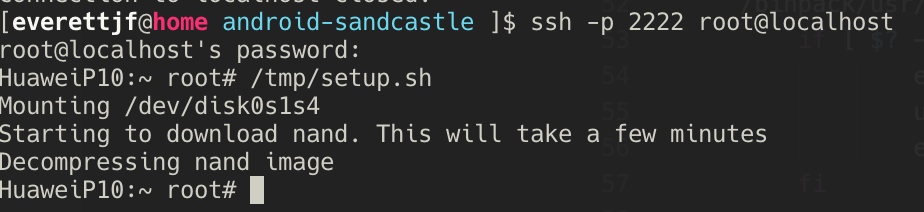
Entering DFU Mode
- Power off the iPhone.
- Hold Volume Down + Power simultaneously for 10 seconds (as exactly 10 seconds as possible).
- Release the Power button, but keep holding Volume Down.
- The phone’s screen will stay black, indicating it has entered DFU mode.
Then in DFU mode, run ./start_mac.sh.
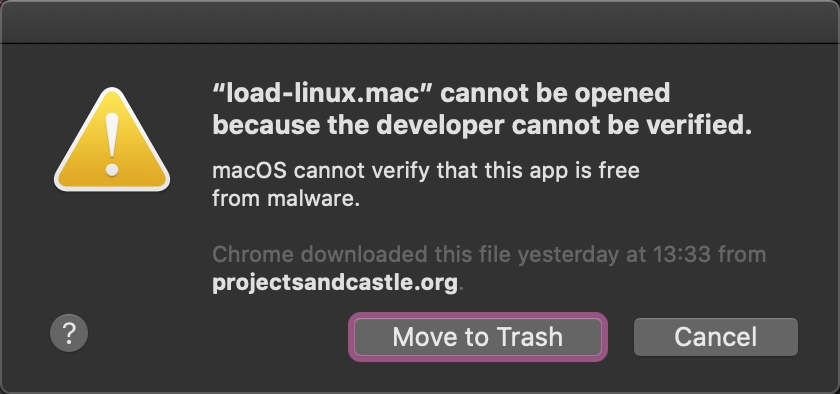
Ideally, you’re done once it finishes running. But reality is harsh — I ran into the dialog below (inwardly, ten thousand alpacas galloped past, terrified I’d brick the phone…). Of course, you click Cancel.
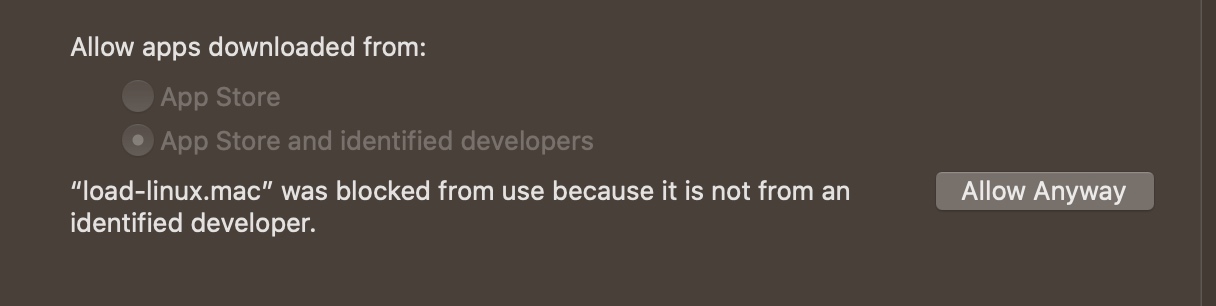
Go to System Preferences -> Security & Privacy -> General, and click Allow Anyway.
This still doesn’t work yet. Just in case, run this once first:
./load-linux.mac
Then you can click Open.
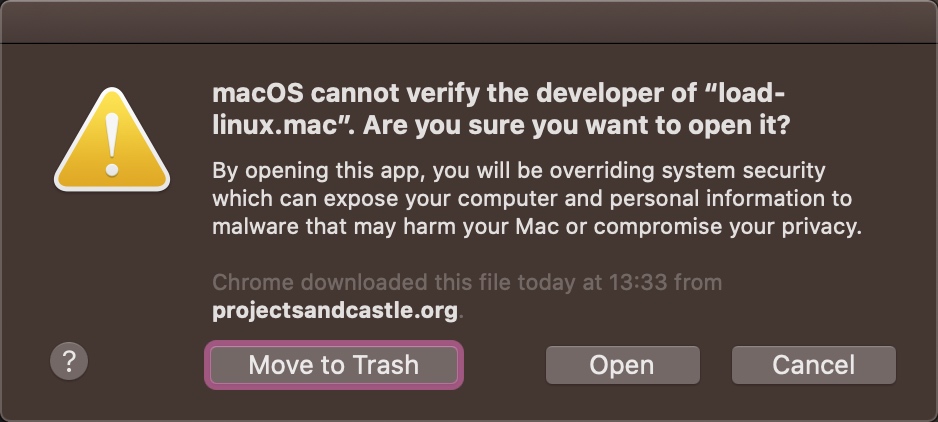
But at this point, re-running start_mac.sh doesn’t seem to “resume” anymore. Inwardly, X#@%$$. The “clever” me took a look at the start_mac.sh code, and it looks like you can run this step.
./load-linux.mac Android.lzma dtbpack
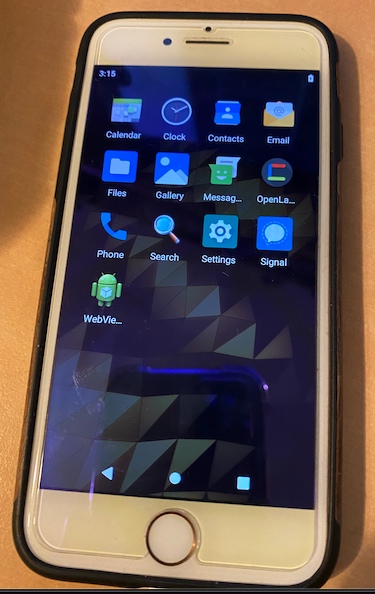
Finally success — Android booted up on the iPhone.
Screenshots
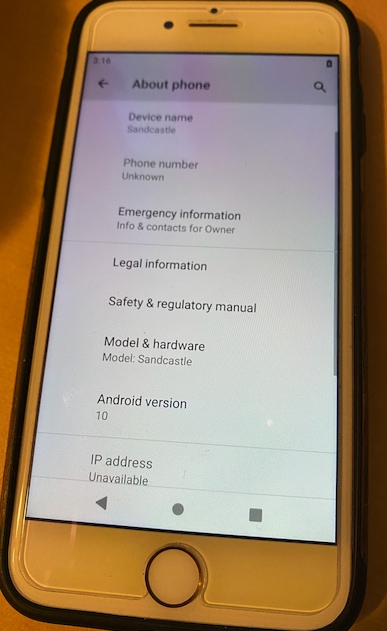
Summary
- It runs pretty laggy.
- Rebooting restores iOS.
Still pretty interesting. For a video, you can search everettjf on Douyin.
历史上第一次让Android系统运行到iPhone手机上。目前(2020年3月6日)的版本只支持iPhone7/7 Plus。(iOS系统版本无要求)
Project Sandcastle: Android for the iPhone 项目地址:https://projectsandcastle.org/
正好手头有个iPhone7,体验了下。步骤简单总结下,分享给大家。理想的步骤如下,但由于macOS的安全机制,导致步骤2和3不那么轻松愉快。
- 使用checkra1n越狱
- 运行start_mac.sh
- 运行setup_mac.sh
越狱
下载 https://checkra.in/ 按照步骤越狱。(iPhone使用USB连接Mac。)
越狱后,进入iOS。
下载 Android Build
在 https://projectsandcastle.org/status 下载 Android Build。
解压下载的文件。
setup_mac.sh
iPhone使用USB连接Mac。理想情况下,macOS上执行 ./setup_mac.sh即可。但我执行不太顺利。自带的iproxy和两个动态库的签名首次执行还需要信任。但其实功能就是iproxy的功能,因此下面手动把 setup_mac.sh 中的步骤执行。
可以先ssh连接下iOS,确保手动连接成功。然后参考如下步骤。
(1)
iproxy 2222 44
(2) 把isetup复制到iOS的/tmp/setup.sh
scp -P2222 -o StrictHostKeyChecking=no isetup root@localhost:/tmp/setup.sh
(3) 两个方法:
一是,FQ。 或者,修改setup.sh中的网络连接测试的地址,比如专门测试网能不能上的baidu(看来老外也是对应的用google测试啊)
建议使用FQ的方法,因为这个脚本会下载470MB的文件,我家的Wi-Fi不FQ的话,下载这个文件很慢,FQ后貌似几分钟就好了。
(4) 执行 /tmp/setup.sh
进入DFU 模式
- iPhone关机。
- 同时按 音量下 + 关机键,10秒钟(尽量严格的10秒)。
- 松开 关机键,继续保持音量下。
- 此时手机屏幕会保持黑屏,表示进入了DFU模式。
然后在DFU模式下,执行./start_mac.sh。
理想情况下,执行完成就可以了。但现实很残酷,我见到了下面这个弹窗(内心一万匹羊驼飞奔而过,生怕把手机搞坏了……),当然要点Cancel。
进入 System Preferences -> Security & Privacy -> General, 点 Allow Anyway。
此时还不行,为了预防万一,先命令后执行一次
./load-linux.mac
然后就可以点Open了。
但此时重新执行start_mac.sh似乎不能”恢复继续”了,内心X#@%$$。“聪明”的我看了下start_mac.sh的代码,看来可以执行执行这一步。
./load-linux.mac Android.lzma dtbpack
终于成功,iPhone上启动了Android系统。
截图
总结
- 运行比较卡。
- 重启就恢复iOS。
还是挺有趣的,视频可抖音搜索 everettjf 查看。