writing
CodeFriend: Developing Xcode Extensions with JavaScriptCodeFriend:使用 JavaScript 开发 Xcode Extensions
· Building tools & products
Translated from Chinese — .
On this page
Code Friend is an Xcode Extension that provides a JavaScript interface, so users can quickly and easily develop Xcode plugin tools based on this app.
Official site: https://qvcodefriend.github.io/ Mac App Store: https://itunes.apple.com/cn/app/code-friend/id1441249580
Background
Starting with Xcode 8, Apple provided XcodeKit for developing Xcode Extensions. But because of various bugs and an overly simplistic interface, it has never been popular with developers. Even now in Xcode 10, the functionality XcodeKit provides is still limited.
Even so, there are still many enthusiasts who have developed all sorts of small features, for example: Awesome native Xcode extensions https://github.com/theswiftdev/awesome-xcode-extensions
Recently I joined a new company that has new requirements for code style, so I wanted to use scripts to find code that doesn’t conform to the standards, and eventually thought of developing an Xcode Extension to check code style. During development, I felt that if I used pure native development, every time I wanted to adjust or add a rule I’d have to recompile, and even resubmit for review — too much of a hassle.
And so the idea for Code Friend was born. It wraps the functionality provided by XcodeKit through JavaScriptCore. The feature logic is developed in JavaScript.
Now let’s formally introduce Code Friend.
Basic Information
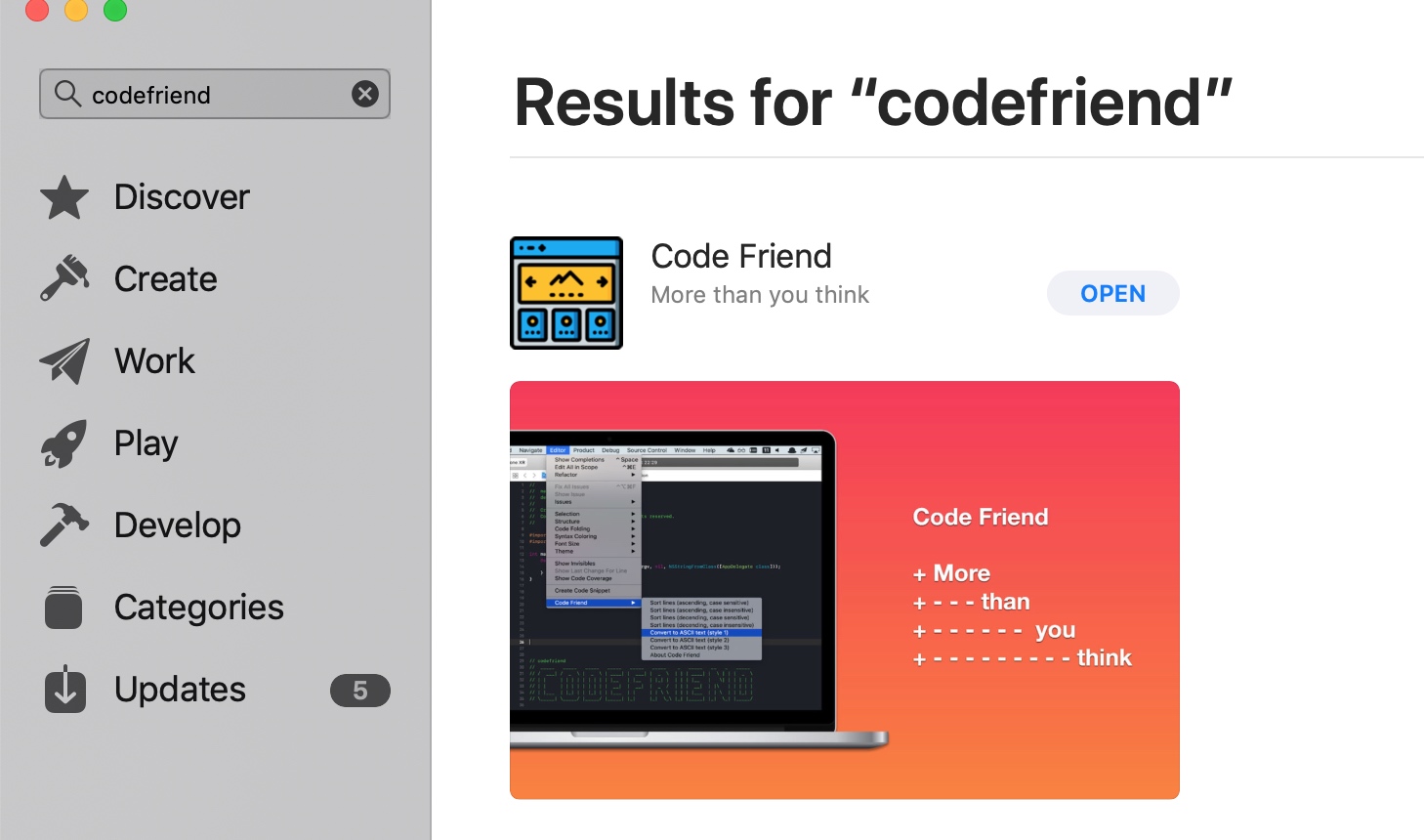
Code Friend is a macOS app with a built-in Xcode Source Editor Extension. You can search for Code Friend in the Mac App Store to install it.
How to Use
Enabling
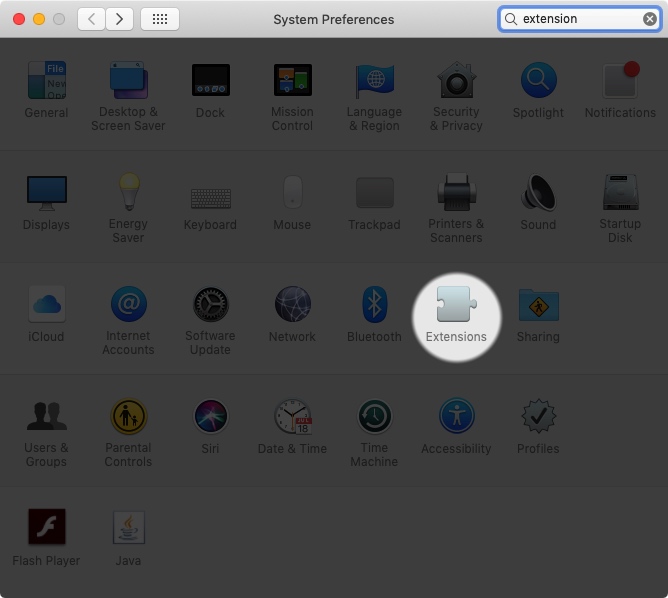
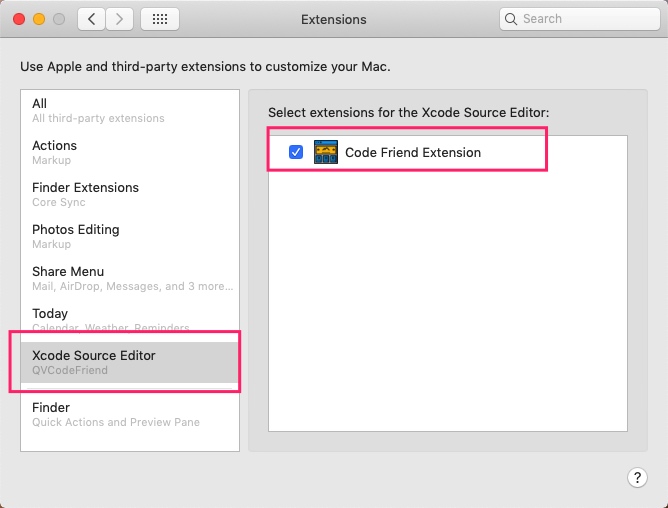
Because of the system’s permission controls on Extensions, you need to enable Code Friend in System Preferences -> Extensions -> Xcode Source Editor -> Code Friend Extension.
Using the Built-in Features
After Code Friend is enabled, open any project with Xcode, open the Editor menu, and at the very bottom you’ll see Code Friend.
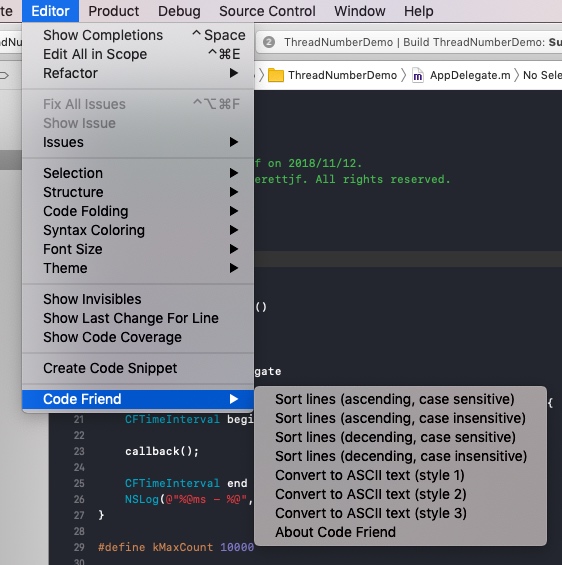
For example, select everettjf, click Convert to ASCII text (style1), and you’ll see the corresponding ASCII Text appear on the line below the line containing everettjf.
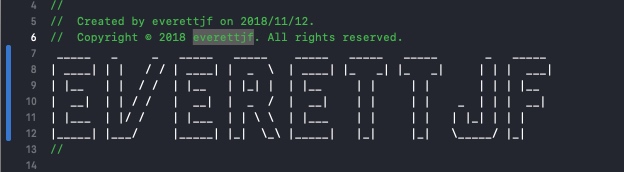
The other menu items are similar. Sort lines can sort multiple selected lines. About just opens the official website.
So far, all of this is what an ordinary Xcode Extension can do.
But here, every menu item’s functionality is implemented in JavaScript — now that’s interesting. The code can be found at https://github.com/qvcodefriend/qvcodefriend.github.io/tree/master/packages/builtin
Installing and Using DLC Pack 1
Implementing a single menu item is simple, much like providing some JSAPI to an H5 page; but implementing a “mini-program platform” is a bit more involved. On this point, Code Friend can be considered a very simple little platform.
DLC Pack 1 is a feature extension pack (I named it casually, similar to Zelda’s DLC).
Open the Code Friend macOS app.
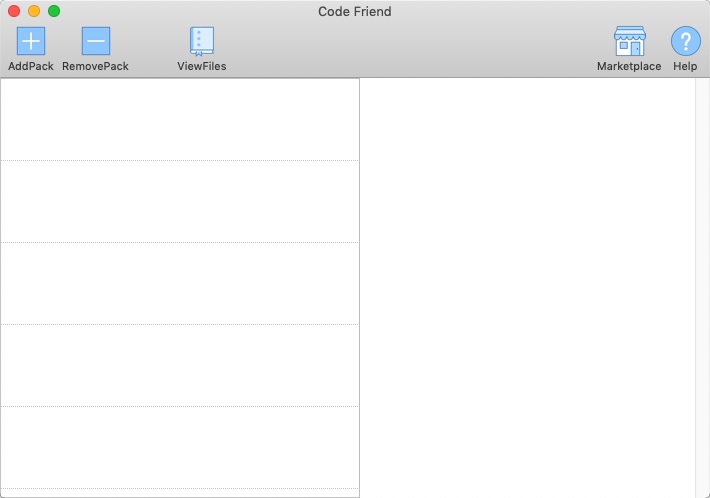
Click AddPack in the top-left, then click Try DLC Pack1 in the top-right, and at this point DLC Pack1’s installation address (https://qvcodefriend.github.io/packages/dlc/) is filled in.
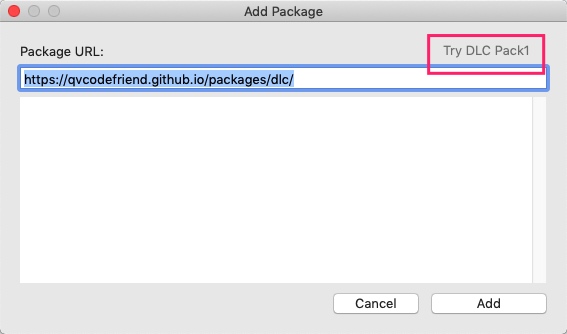
Click Add, and it will start downloading the extension pack. If all goes well, it will report All Succeed :).
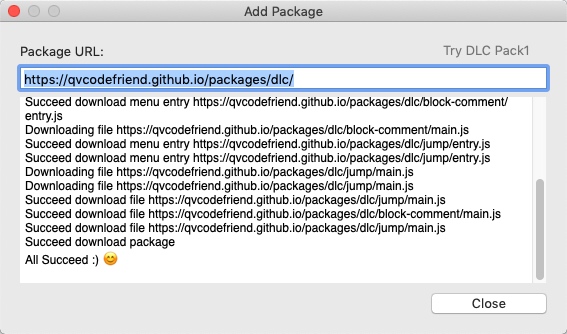
Click Close.
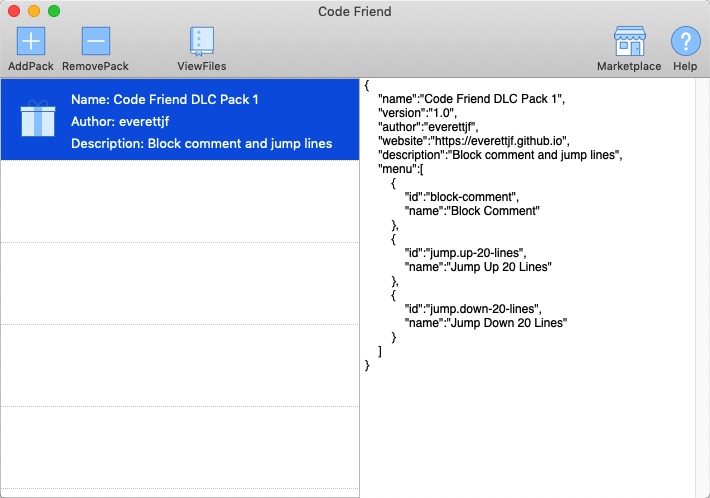
Now you can see an extra entry Code Friend DLC Pack 1 in the main interface. After clicking it, some configuration info is shown on the right. For simplicity, it currently just displays this extension pack’s json config file directly. From it you can see which menu items there are.
The Code Friend desktop app can now be closed.
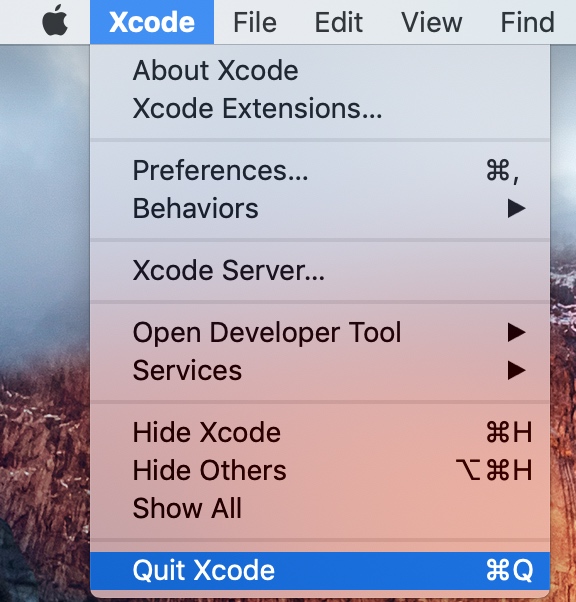
Xcode also needs to be quit completely and reopened.
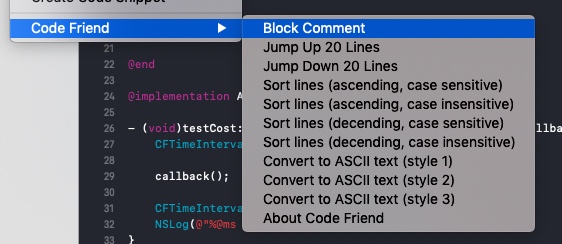
Open a project again, and you’ll see the DLC Pack1 menu items newly added to the menu.
That’s all there is to using it.
Marketplace
Extension packs like DLC Pack1 can be developed by anyone (see below for how). You just need to give an installation address, and it can be installed into Code Friend.
So it makes sense to put together an official extension-pack marketplace, at: https://qvcodefriend.github.io/marketplace/. Right now it’s just a webpage; you can use the URLs on it to install.
You can access it by clicking the top-right of the desktop app.
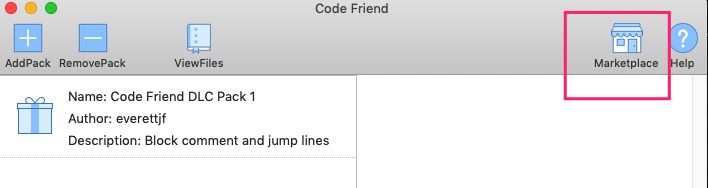
Currently there’s only this one extension pack, Code Friend DLC Pack 1.
Developing New Features
In Short
It’s time to develop your own extension pack. In short, there are two steps:
- Develop by calling the API in the format described at https://qvcodefriend.github.io/develop/.
- Publish to a website that Code Friend can access (e.g. GitHub Pages).
Below I’ll quickly create an extension pack using GitHub Pages. The GitHub Pages introduction is at https://pages.github.com/.
Three Steps
1) Step One: Create an Organization
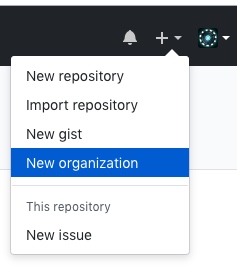
Click the menu in the figure below, or visit https://github.com/organizations/new directly.
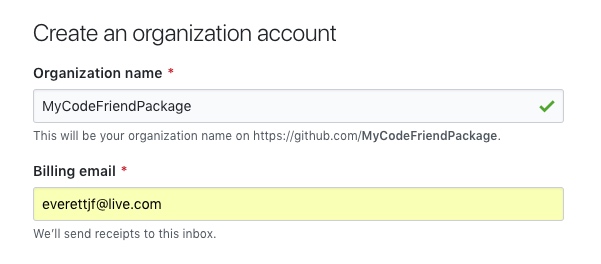
For example, I called mine MyCodeFriendPackage; if you create one you’ll need a different name.
2) Step Two: Create GitHub Pages
Visit https://github.com/qvcodefriend/helloworld, click Fork, and select the organization you just created. As shown below (Emmmm… I’ve created a few too many organizations…).
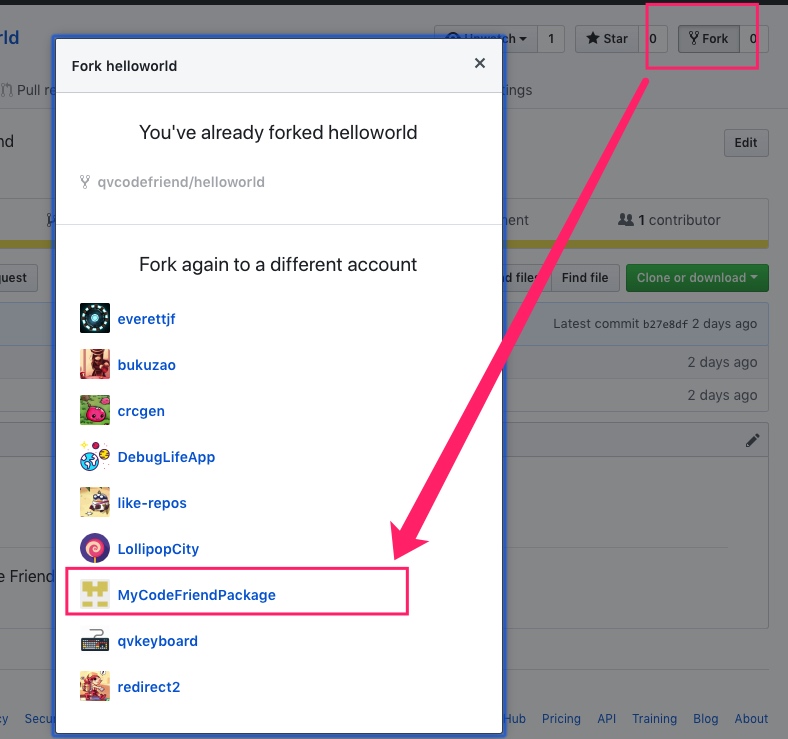
After forking, rename the forked repo to: mycodefriendpackage.github.io. (Note this must be the lowercase of the organization name.)
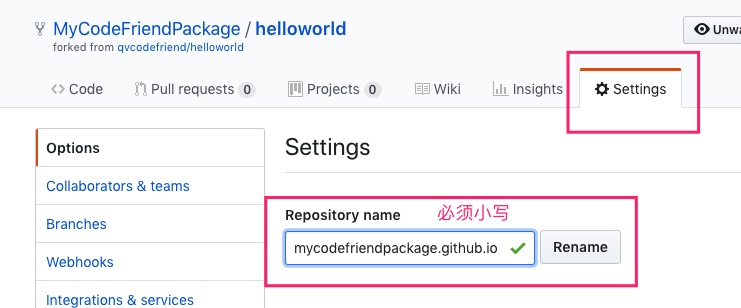
After renaming, continue on the lower part of the Settings page and select Choose a theme.
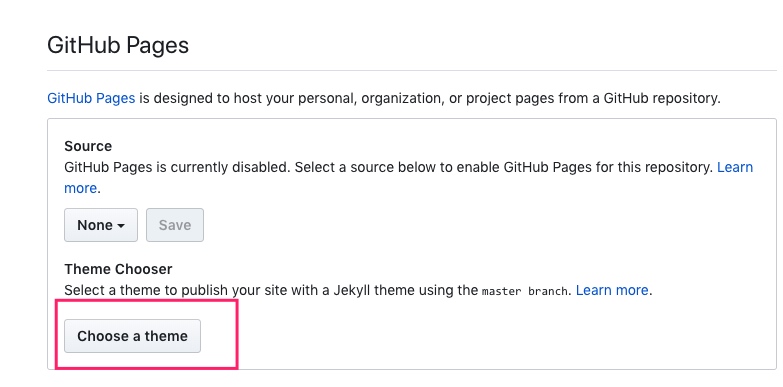
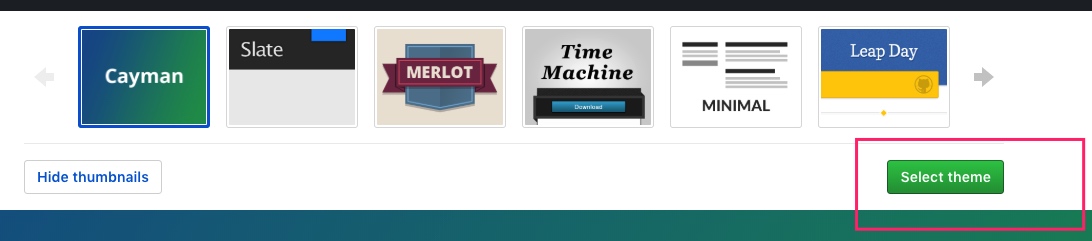
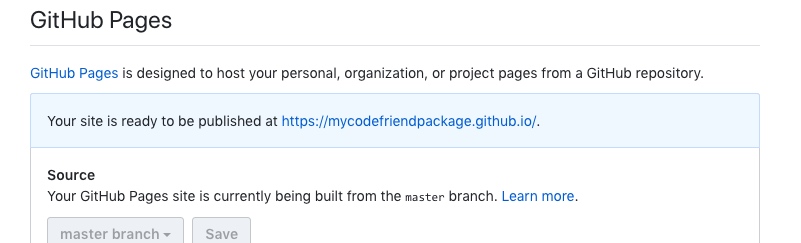
Any one will do. Click Select theme, and now you’ll see a notice under the GitHub Pages section that https://mycodefriendpackage.github.io/ is accessible.
Step Three: Implement the Feature
At this point you can clone the repo https://github.com/MyCodeFriendPackage/mycodefriendpackage.github.io
git clone git@github.com:MyCodeFriendPackage/mycodefriendpackage.github.io.git
Open the folder, and you’ll see the helloworld folder.
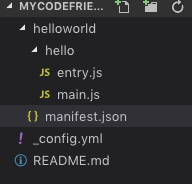
The format of helloworld/manifest.json is as follows:
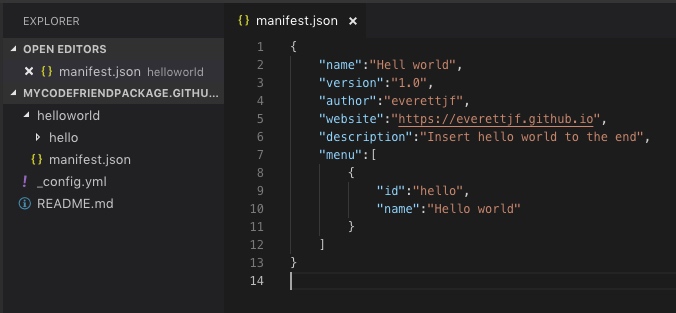
- name: extension pack name, displayed in the Code Friend desktop client list
- version: version
- author: author
- website: official website
- description: feature description
- menu: supported menu items
These are all simple; one look and you’ll know how to modify them. Here, a menu’s id is a folder (e.g. in the figure above the menu id is hello, corresponding to a hello folder).
The hello folder must contain an entry.js. Its internal entry variable is an array that defines all the JavaScript files needed to implement the current menu feature; Code Friend will execute them in order when loading.
var entry = [
    'main.js'
];
main.js must have an onMenuClicked function, whose return value must be a dictionary containing result.
var onMenuClicked = function(identifier){

    invocation.appendLines(['Hello World']);

    return {
        'result':true
    };
};
Now for the most important step: calling the API to implement the feature.
The API provides two global variables, invocation and system, briefly listed below. For details see the docs https://qvcodefriend.github.io/develop/
# invocation
## getter,setter
1) [getter] invocation.contentUTI
2) [getter] invocation.tabWidth
3) [getter] invocation.indentationWidth
4) [getter] invocation.usesTabsForIndentation
5) [getter] invocation.selectionExist
6) [getter,setter] invocation.selections
7) [getter] invocation.firstSelection
8) [getter] invocation.selectionStrings
9) [getter] invocation.selectionLines
10) [getter,setter] invocation.completeBuffer
11) [getter,setter] invocation.lines
12) [getter] invocation.lineCount

## method
1) invocation.insertLinesAtIndex(ArrayOfString,Integer)
2) invocation.appendLines(ArrayOfString)
3) invocation.removeLinesFromTo(Integer,Integer)
4) invocation.assignLineAtIndex(String,Integer)

# system
## method
1) system.log(String)
2) system.openURL(String)
For example, the invocation.appendLines(['Hello World']); in helloworld above adds a new line at the end of the current document, with the content Hello World.
Step Four: Done
After completing the above, the helloworld extension pack’s address is https://mycodefriendpackage.github.io/helloworld/, and you can add it in the desktop client.
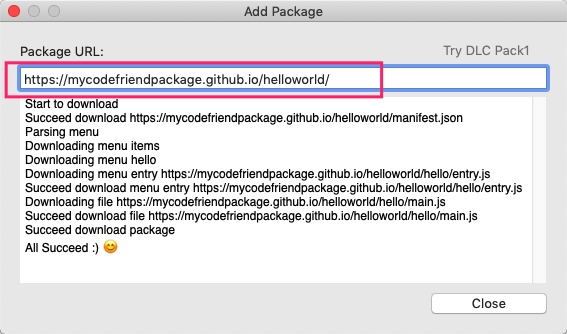
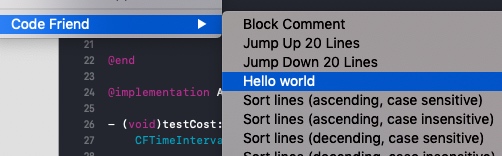
The menu name Hello world has also appeared; after clicking it you can append a Hello World line.
Reference Extension Pack Source Code
Code Friend’s built-in ASCII Text, Sort lines, as well as DLC Pack 1, are all implemented in JavaScript. The code addresses are as follows: https://github.com/qvcodefriend/qvcodefriend.github.io/tree/master/packages
The Future
Code Friend is currently just an MVP version, and will be continuously improved with use in the future. Also, the functionality XcodeKit currently provides is still very limited — it can only operate on the content of the current file. I believe Apple will open up more functionality in the future, at which point Code Friend’s flexibility will really show.
Summary
From idea to implementation, it really was a not-easy process.
文章目录
Code Friend 是一款Xcode Extension,提供了JavaScript的接口,用户可基于这个App简单快捷开发出Xcode插件工具。
官方地址:https://qvcodefriend.github.io/ Mac App Store 地址:https://itunes.apple.com/cn/app/code-friend/id1441249580
背景
从Xcode 8开始,苹果提供了XcodeKit用于开发Xcode Extensions。但因为各种bug和接口太简单,一直不受开发者的喜爱。直到现在Xcode 10,XcodeKit提供的功能仍然有限。
即便如此,仍然有很多爱好者,开发出各种各样的小功能,例如:Awesome native Xcode extensions https://github.com/theswiftdev/awesome-xcode-extensions
近期加入了新公司,对代码规范有了新的要求,于是想通过脚本来查找不符合规范的代码,最终想到了开发一个Xcode Extension来检查代码规范。开发中又觉得如果使用纯Native开发,每次如果要调整或增加规范,都要重新编译,甚至重新提交审核,太过麻烦。
于是就有了现在Code Friend的想法。通过JavaScriptCore把XcodeKit的提供的功能封装起来。功能逻辑使用JavaScript开发。
下面就正式开始介绍Code Friend。
基本信息
Code Friend 是一个macOS App,内置了Xcode Source Editor 这个Extension。可以在 Mac App Store搜索 Code Friend 安装。
使用方法
启用
由于系统对Extensions的权限控制,需要在 System Preferences -> Extensions -> Xcode Source Editor -> Code Friend Extension 中启用 Code Friend。
内置功能使用
Code Friend 启用后,使用Xcode 打开任意工程,打开菜单 Editor ,最下方就可看到 Code Friend。
例如选中 everettjf ,点击 Convert to ASCII text (style1),即可看到everettjf所在行的下一行出现了对应的ASCII Text。
其他菜单类似啦。Sort lines 是可以对选中的多行排序。About就是打开官方网站。
至此,这些都是一个普通的Xcode Extension可以做的。
但是,这里每个菜单的功能都是使用JavaScript实现的,有意思咯。代码可以见 https://github.com/qvcodefriend/qvcodefriend.github.io/tree/master/packages/builtin
DLC Pack 1 安装和使用
单纯实现一个菜单简单,就像给H5提供一些JSAPI一样,但如果实现一个小程序平台,就麻烦点了。这一点上,Code Friend 可以说是个很简单的小平台咯。
DLC Pack 1 是个功能扩展包(我随意起的名字,类似zelda的dlc哈)。
打开Code Friend 的macOS App。
点击左上角 AddPack ,再点击右上角的Try DLC Pack1,这时DLC Pack1的安装地址 (https://qvcodefriend.github.io/packages/dlc/) 就填入了。
点击Add,则会开始下载扩展包,顺利的话,会告知All Succeed :)。
点击Close。
此时可以看到主界面多出一个条目Code Friend DLC Pack 1,点击后,右侧可显示一些配置信息。目前为了简单,直接显示了这个扩展包的json配置文件。从中可以看到有哪几个菜单。
Code Friend 的桌面App可以关闭了。
Xcode 也需要彻底退出,重新打开。
再次打开一个工程,就能看到菜单中新增的DLC Pack1的菜单。
至此,使用方法就是这些啦。
市场
类似DLC Pack1这样的扩展包,任何人都可以开发(开发方法见下文),只需要告诉一个安装地址,就能安装到Code Friend中。
那么就有必要整理一个官方的扩展包市场,网址是:https://qvcodefriend.github.io/marketplace/ 。目前只是个网址,使用其中的Url可以安装。
桌面App右上角点击即可访问。
目前只有Code Friend DLC Pack 1这一个扩展包哈。
开发新的功能
简单说
是时候开发自己的扩展包了。简单说有两个步骤:
- 按照 https://qvcodefriend.github.io/develop/ 这里的格式调用API开发。
- 发布到一个Code Friend可访问的网站(例如GitHub Pages)。
下面就使用GitHub Pages快速创建一个扩展包。GitHub Pages介绍地址 https://pages.github.com/。
三个步骤
1)第一步,创建一个组织
点击下图菜单,或者直接访问 https://github.com/organizations/new
例如我这里叫MyCodeFriendPackage,你如果创建需要用个别的名字啦。
2)第二步,创建GitHub Pages
访问 https://github.com/qvcodefriend/helloworld 点击Fork,并选择刚才创建的组织。如下图(Emmmm…我的创建的组织有点多…)
Fork完成后,修改fork过来的仓库的名称为:mycodefriendpackage.github.io 。(注意这里必须是组织名称的小写)
重命名完成后,继续在Settings页面下方,选择 Choose a theme。
随便一个都可以,点击 Select theme,此时就可以看到GitHub Pages栏目下提示 https://mycodefriendpackage.github.io/ 可以访问了。
第三步,实现功能
此时就可以clone下仓库 https://github.com/MyCodeFriendPackage/mycodefriendpackage.github.io
git clone git@github.com:MyCodeFriendPackage/mycodefriendpackage.github.io.git
打开文件夹,可以看到helloworld文件夹
其中helloworld/manifest.json 格式如下:
- name 扩展包名称,显示在Code Friend桌面客户端列表中的名称
- version 版本
- author 作者
- website 官方网站
- description 功能描述
- menu 支持的菜单项
都很简单,一看就知道怎么修改。其中menu的id是文件夹(例如上图的menu id是hello对应一个hello文件夹)。
hello文件夹中必须有一个 entry.js,内部entry变量的数组,定义了当前菜单功能实现所需的所有JavaScript文件,Code Friend在加载时会按顺序执行。
var entry = [
    'main.js'
];
main.js 必须有一个onMenuClicked的function,返回值必须是一个包含result的字典。
var onMenuClicked = function(identifier){

    invocation.appendLines(['Hello World']);

    return {
        'result':true
    };
};
到了最重要的一步啦。调用API实现功能。
API提供了 invocation 和 system 两个全局变量,简单罗列如下。详细见文档 https://qvcodefriend.github.io/develop/
# invocation
## getter,setter
1) [getter] invocation.contentUTI
2) [getter] invocation.tabWidth
3) [getter] invocation.indentationWidth
4) [getter] invocation.usesTabsForIndentation
5) [getter] invocation.selectionExist
6) [getter,setter] invocation.selections
7) [getter] invocation.firstSelection
8) [getter] invocation.selectionStrings
9) [getter] invocation.selectionLines
10) [getter,setter] invocation.completeBuffer
11) [getter,setter] invocation.lines
12) [getter] invocation.lineCount

## method
1) invocation.insertLinesAtIndex(ArrayOfString,Integer)
2) invocation.appendLines(ArrayOfString)
3) invocation.removeLinesFromTo(Integer,Integer)
4) invocation.assignLineAtIndex(String,Integer)

# system
## method
1) system.log(String)
2) system.openURL(String)
例如上面helloworld中的invocation.appendLines(['Hello World']); 就是在当前文档的最后增加新的一行,内容是Hello World。
第四步,完成
上面完成后,helloworld扩展包的地址就是 https://mycodefriendpackage.github.io/helloworld/,在桌面客户端就可以添加啦。
菜单名称Hello world也出现了,点击后可以追加Hello World行啦。
参考扩展包源码
Code Friend 内置的 ASCII Text、Sort lines,以及 DLC Pack 1 都是使用JavaScript实现的。 代码地址如下: https://github.com/qvcodefriend/qvcodefriend.github.io/tree/master/packages
未来
Code Friend 目前只是一个MVP版本,未来会随着使用不断完善。另外,目前XcodeKit提供的功能还很有限,只能操作当前文件的内容。相信苹果未来会开放更多功能,届时Code Friend的灵活性就能体现出来。
总结
从想法到实现,真是一个不容易的过程。