writing
Releasing Filter Line, a VSCode Log Filtering ExtensionVSCode 日志过滤插件 Filter Line 发布
· Building tools & products
Translated from Chinese — .
On this page
For English article , please visit here
Background
Troubleshooting at work always involves reading client logs. After the logs are collected, you have to stare hard to carefully read the key information in the logs. Some problems can’t even be diagnosed from a single line of log — you need to find clues across multiple lines.
Scripts
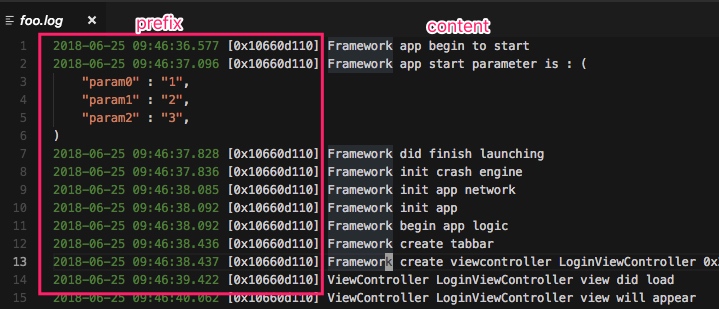
In this situation, I gradually wrote some scripts to filter logs. For example, take the log below:
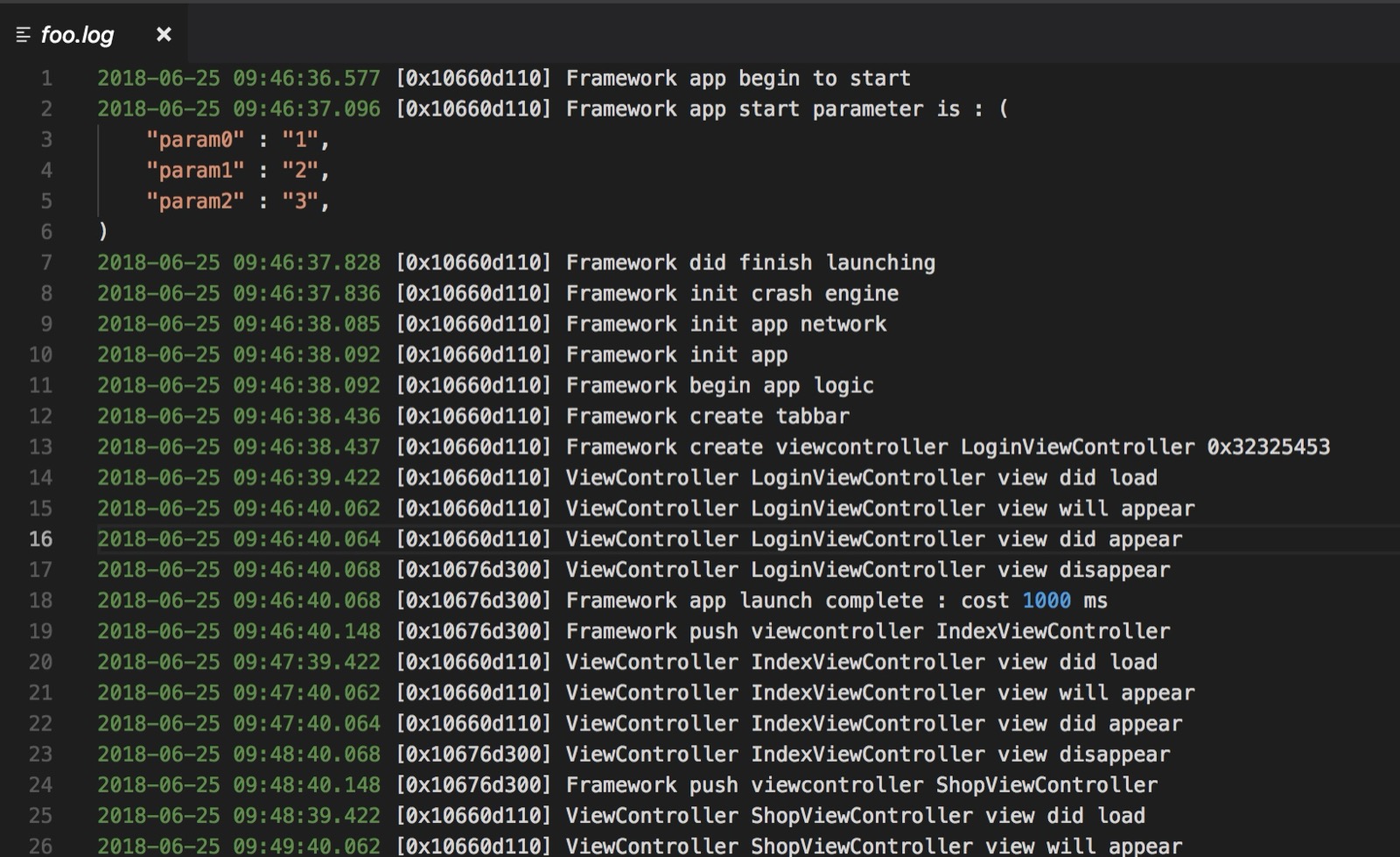
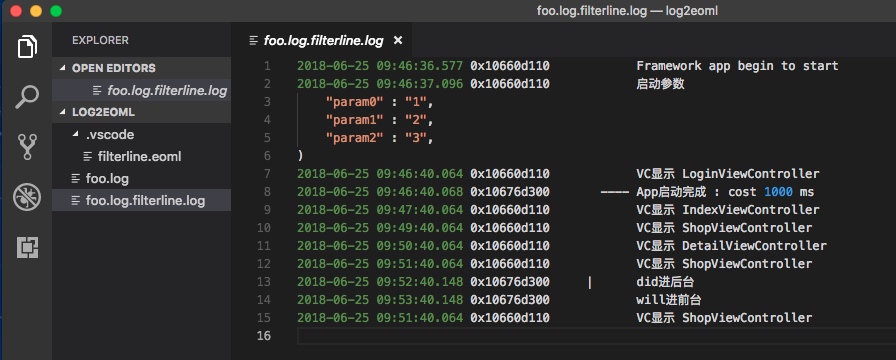
and through regex matching, translate it into this:
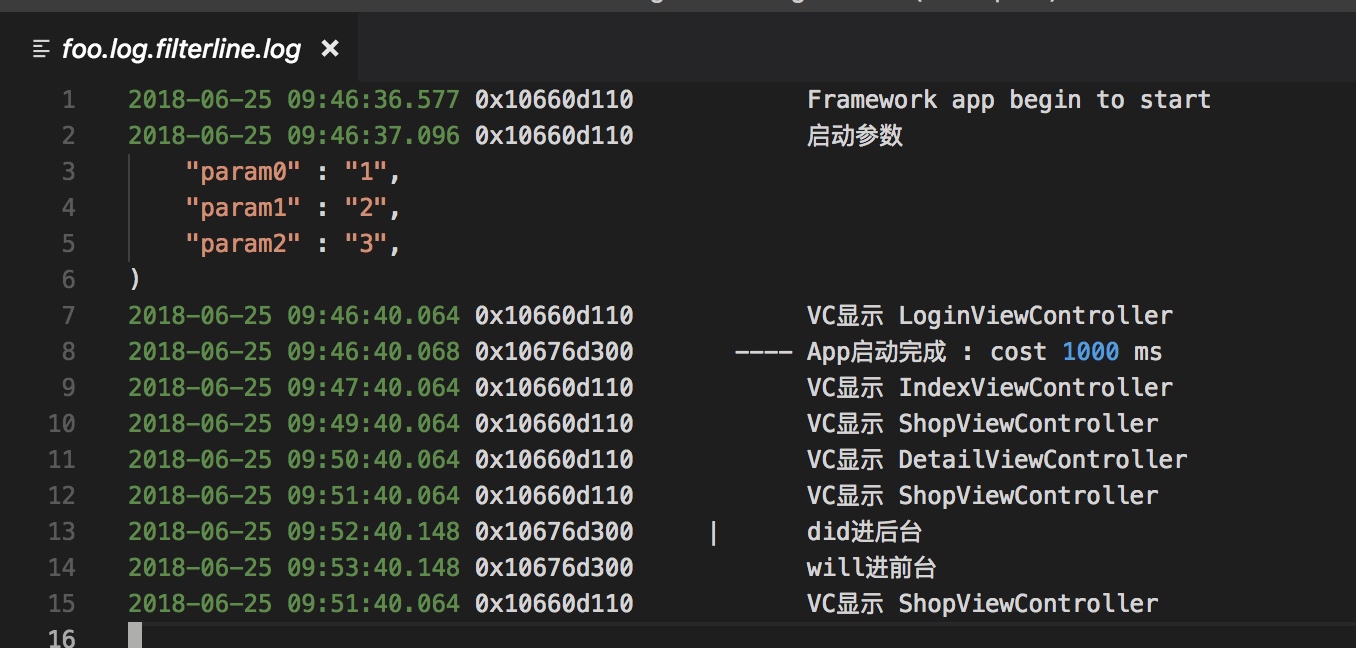
Now it’s easy to understand — after filtering, you can see the time of the problem at a glance. It relieves eye strain, and life is much better.
Why VSCode
Over these two years of reading logs, I went from the initial TextWrangler to sublime to emacs to vim to atom — I used all of them — until I later found that VSCode opens large files very smoothly, and I’ve been using VSCode ever since.
VSCode Extension
Recently I made my daily translation scripts more general and wrote a VSCode extension Filter Line, sharing it for everyone to use.
The extension supports filtering and translating logs line by line based on a single string, a single regex, and more flexible config files.
See the animated gif:

Installing the Extension
- Download VSCode, https://code.visualstudio.com/
- Search for the extension, click Install
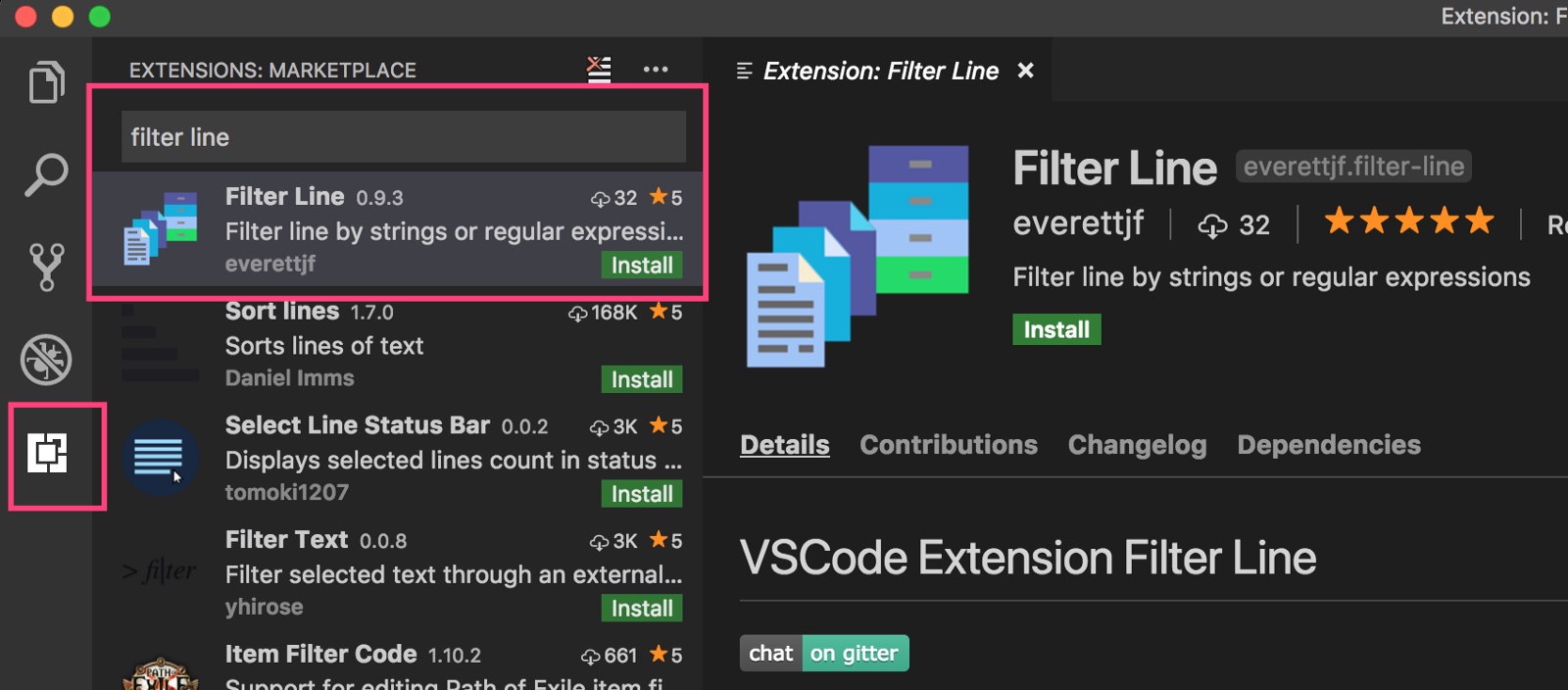
- After installation, click Reload.
Usage
Open a folder, e.g. the ~/log2eoml folder, and put the log file log.txt into this folder. You can directly refer to this demo; after unzipping, drag the demo/log2eoml folder into VSCode.
-
Open the log2eoml folder, and open foo.log
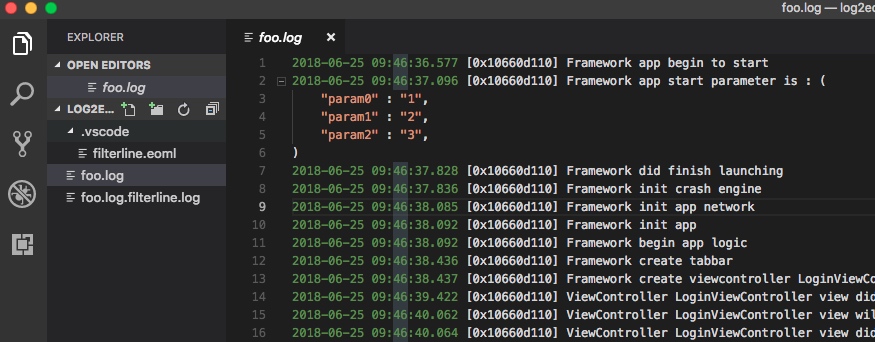
-
Run command+shift+p, type filter line by config file (or filter config), and select
Filter Line By Config File, as shown below.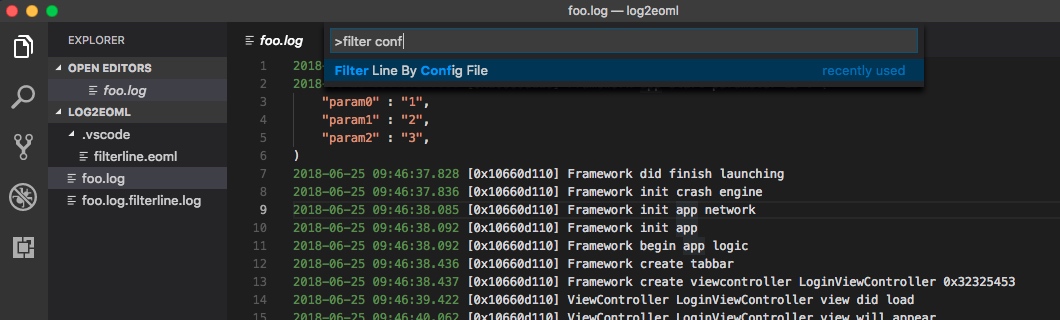
-
Press Enter, and a new file foo.log.filterline.log is generated and automatically opened. This is the filtered and translated log.
How It Works
Open the log2eoml/.vscode/filterline.eoml file,
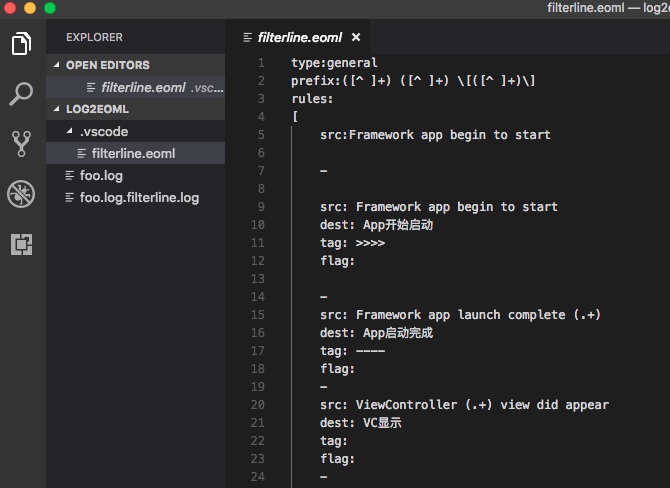
The config file format is very simple:
- type is general, meaning the general type.
-
prefix is the regex for matching the prefix. Here it’s for matching the time, thread, and other info on each line.
- rules are the rules for filtering and translating (replacing).
- src is the regex to match. dest is the string to replace it with.
- tag is the prefix added to the output when matched. For certain special lines, e.g. crashes, you can obviously add an emoji icon.
- flag is a global marker. For example, when the app enters the background, add a marker to all lines, and remove the marker when it returns to the foreground.
- until means that when a certain line is matched, the following several lines continuously output the original content, until some line matches a regex.
More Formats
filterline.eoml is one format; you can also use filterline.json. For example this file.
eoml is a simple format I made up, mainly to solve the problem of needing to escape regular expressions inside json.
For more log filtering demos, refer to https://github.com/everettjf/vscode-filter-line/tree/master/demo
For more info, refer to https://github.com/everettjf/vscode-filter-line
Closing
Translating (replacing) logs has saved a lot of troubleshooting time, and the saved time has helped me locate problems faster in the past. I believe it can speed up everyone’s problem-locating time too.
And it can also relieve eye strain~~
For English article , please visit here
背景
日常工作中排查问题少不了看客户端日志。日志采集上来后,又要瞪大眼睛仔细看日志中的关键信息,有些问题还不是某一行日志可以判断出原因的,需要针对多行日志找线索。
脚本
这种情况下就逐渐写了一些脚本来过滤日志,例如把下面的日志:
通过正则匹配,翻译成下面这样:
这样就通俗易懂了,过滤后一眼就看出问题时间。缓解了眼部压力,生活美好了很多。
怎么是vscode
这两年看日志,从最初的TextWrangler到sublime到emacs到vim到atom,各种都使用了一遍,直到后来发现vscode打开大文件很流畅,就一直使用vscode了。
vscode插件
最近把日常翻译的脚本通用化,写了一个vscode 插件 Filter Line,分享给大家使用。
插件支持根据单个字符串、单个正则、以及更为灵活的配置文件来逐行过滤、翻译日志。
参考动图:
安装插件
- 下载vscode,https://code.visualstudio.com/
- 搜索插件,点击Install
- 安装完成后,点击Reload。
使用
打开一个文件夹,例如 ~/log2eoml 文件夹,把日志log.txt放到这个文件夹中。可以直接参考这个demo,解压后把demo/log2eoml文件夹拖拽到vscode中。
1、打开log2eoml文件夹,并打开foo.log
2、运行 command+shift+p ,输入 filter line by config file (或者filter config),选择 Filter Line By Config File ,如下图。
3、回车,就生成了新的文件foo.log.filterline.log ,并自动打开了。这里就是过滤、翻译好的日志。
原理
打开 log2eoml/.vscode/filterline.eoml文件,
配置文件格式很简单:
- type是general,指通用类型。
-
prefix 是匹配前缀的正则表达式。这里就是为了匹配每一行的时间、线程等信息。
- rules是过滤、翻译(替换)的规则。
- src是匹配的正则。dest是要替换成什么的字符串。
- tag 是匹配到时,输出中增加的前缀。某些特殊行,例如闪退,可以明显的加个emoji图标。
- flag是全局的标记。例如app进入后台,则在所有行都加个标记,会前台时取消这个标记。
- until 是匹配到某行时,后面紧跟的几行连续输出原始内容,直到某一行匹配正则表达式。
更多格式
filterline.eoml是一种格式,还可以使用filterline.json。例如这个文件 。
eoml是自创的一个简单格式,主要是为了解决json中正则表达式还需要转义的问题。
更多日志过滤的demo,可以参考 https://github.com/everettjf/vscode-filter-line/tree/master/demo
更多信息可以参考 https://github.com/everettjf/vscode-filter-line
结语
日志的翻译(替换)节省了大量排查问题的时间,过去的时间让我更快的定位了问题。相信也能加快大家定位问题的时间。
还可以缓解眼部疲劳~~