writing
Spacemacs Getting-Started SummarySpacemacs 入门总结
· Development notes
Translated from Chinese — .
On this page
- Background
- Installation
- Basic Concepts
- Basic Operations
- Cancel a Command
- Move the Cursor Up/Down/Left/Right
- Open or Create a New File
- Save a File
- Switch Between Multiple Files
- Go Back to the Previously Opened File
- Split Windows, Move Focus, Close the Current Split
- How to Change the Font Size
- Open the .spacemacs Config File
- Search
- Replace
- Editing
- Directory Tree
- Projectile Projects
- Basic Configuration
- Everyday Little Needs
- Follow-up Additions
Background
Official site: http://spacemacs.org/
Installation
Step zero: Install the latest emacs.
brew install emacs --with-cocoa
Step one: First, make sure there’s no .emacs file or .emacs.d directory in the Home directory; you can run the commands below to delete them first.
rm -rf .emacs.d
rm .emacs
Step two:
git clone <https://github.com/syl20bnr/spacemacs> ~/.emacs.d
Step three:
Run emacs. After a moment there will be three questions; just press Enter to accept the defaults.
Basic Concepts
C-n 表示Ctrl键的同时,按下字母键n。
M-x 表示Option键(alt键)的同时,按下字母键x。
<spc> f f 表示先后按下空格键、字母键f、字母键f。
<ret> 回车。
Basic Operations
Cancel a Command
C-g 如果在输入某个快捷键中途出错,可以用这个取消。
Move the Cursor Up/Down/Left/Right
上 k 或者 C-p
下 j 或者 C-n
左 h 或者 C-b
右 l 或者 C-f
(pnbf stands for previous, next, backward, forward)
Open or Create a New File
<spc> f f
Save a File
<spc> s s
Switch Between Multiple Files
<spc> b b 列出所有打开的文件
Then use C-n, C-p to select, or type characters to filter, and finally
Go Back to the Previously Opened File
<spc> <tab>
You can run it multiple times to switch back and forth.
Split Windows, Move Focus, Close the Current Split
<spc> w / 右侧分屏
<spc> w - 下侧分屏
<spc> w V 右侧分屏,并移动焦点到右侧
<spc> w S 下侧分屏,并移动焦点到下侧
<spc> w d 退出当前分屏
<spc> 1 切换到编号1的分屏,2、3、4以此类推,每个分屏左下角有编号
<spc> w m 只保留当前分屏
How to Change the Font Size
<spc> z x 弹出选项,=放大,-缩小,0恢复
Open the .spacemacs Config File
<spc> f e d
Search
// 文件内容不多时,基本够用。但文件内容较多(例如文件1MB以上)就慢了
<spc> s s

// 使用grep,性能好,适合大文件
<spc> s g b 对当前打开的所有buffers
<spc> s g g 对当前文件

// 使用ag,性能更好
<spc> s a b 对当前打开的所有buffers
<spc> s a a 对当前文件
Replace
M-x replace-string
Editing
u 撤销
C-r 重做

g c c 注释、反注释
Directory Tree
<spc> f t 打开关闭目录树
<spc> p t 定位到工程目录
Projectile Projects
Create an empty .projectile file in a directory, or a folder containing a .git directory will be automatically recognized as a project root directory.
<spc> / 工程内查找
<spc> * 工程内查找当前光标所在文字
<spc> p R 工程内替换
<spc> p f 工程内定位文件

<spc> p p 多个工程切换
The project list is stored in the following file:
.emacs.d\.cache\projectile-bookmarks.eld
Space-separated.
Basic Configuration
Maximize the Window by Default
Modify any one of the following in the config file
dotspacemacs-maximized-at-startup t 最大化
dotspacemacs-fullscreen-at-startup t 全屏最大化
Select Layers
Modify in the config file
   dotspacemacs-configuration-layers
   '(
     helm
     auto-completion
     better-defaults
     emacs-lisp
     git
     markdown
     org
     syntax-checking
     python
     javascript
     c-c++
     )
Install the SourceCodePro Font
https://github.com/adobe-fonts/source-code-pro
nyan cat
     (colors :variables
             colors-enable-nyan-cat-progress-bar t)
Everyday Little Needs
Filter Logs
- Drag a large file into emacs.
<spc> s g bto grep.
Fuzzy-Locate Files in a Folder
- Create an empty .projectile file in the target folder.
<spc> p fto locate a file.
Find and Replace Across All Files in a Folder
- Create an empty .projectile file in the target folder.
<spc> /to find within the folder.<spc> p Rto replace within the project.
logos Syntax
;; theos - for jailbreak iOS Tweak files
(add-to-list 'auto-mode-alist '("\\.xm$" . objc-mode))
Follow-up Additions
Added in January 2018, perhaps the last addition. Because, for my usage habits, I’ve found that SpaceVim can completely replace spacemacs.
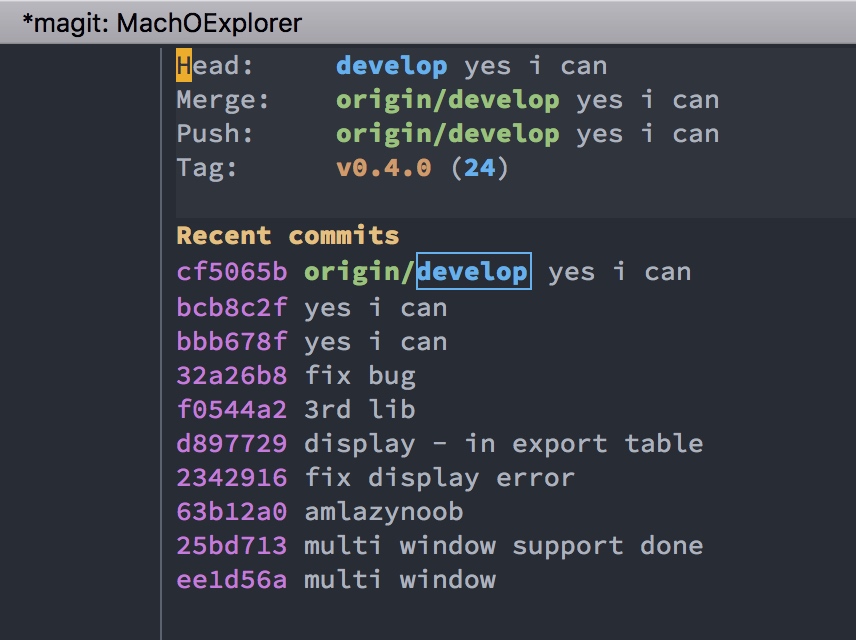
tip 1 : commit repo by magit
It was almost one year since I ,as a really nood for emacs, feel disappointed for spacemacs, all because of that I can not commit my git repo ( using magit).
Today I finally complete it. This is the phases below :
SPC g s to see the status of current project
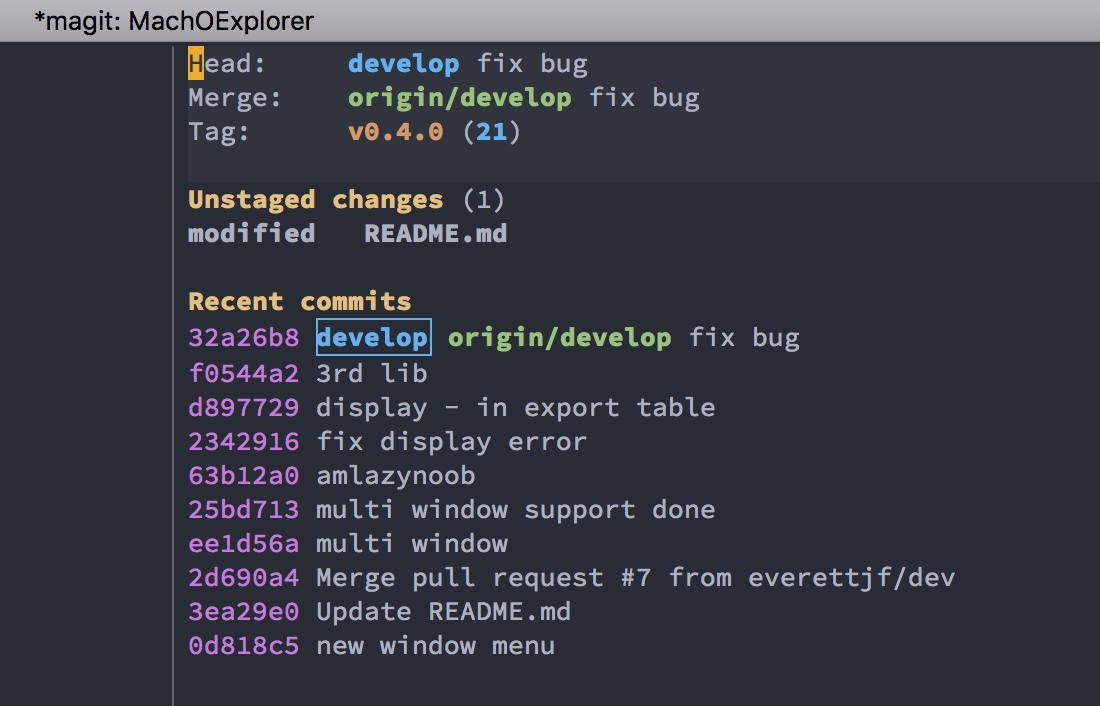
S to stage all files.
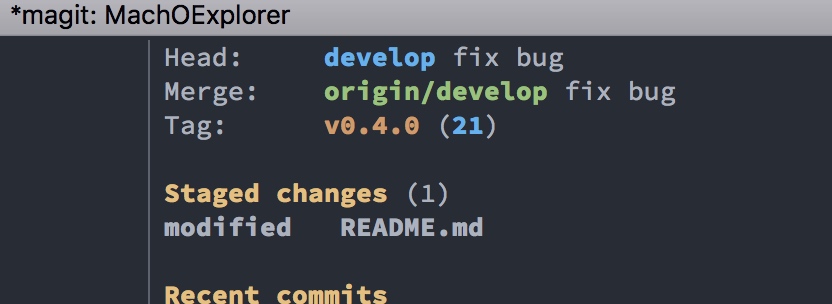
c c to commit, and edit the commit message ( must add some words)
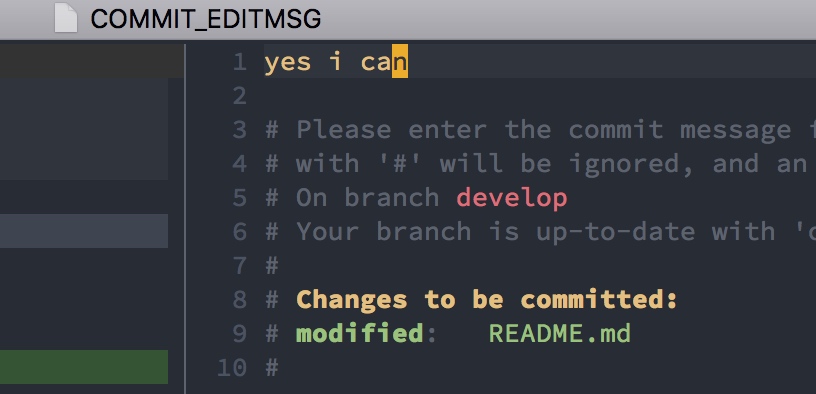
, , to really commit
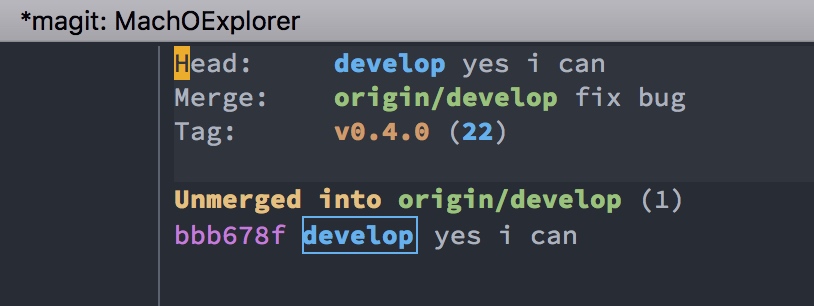 Yes , I can.
And I also can push origin master by P p
tip 2 : use atom-one-dark-theme for spacemacs
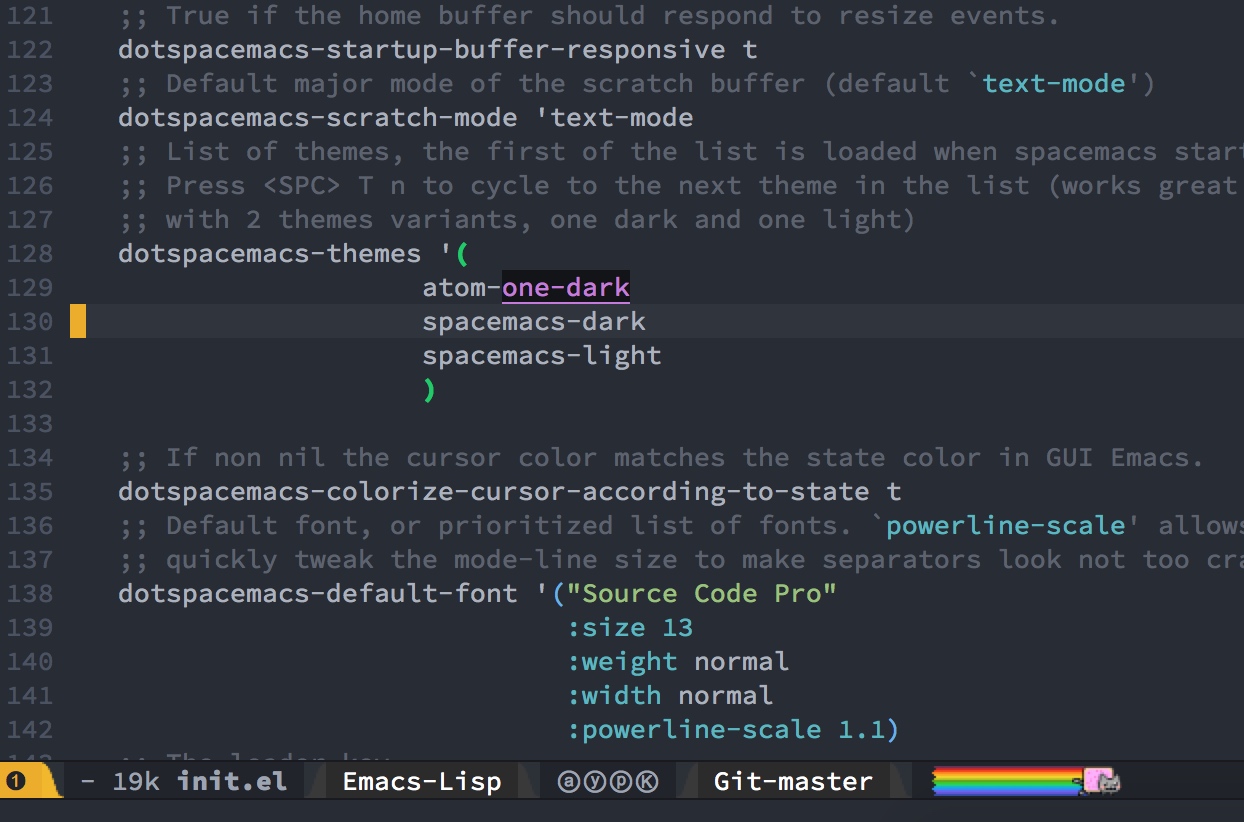
Since atom-one-dark-them has not been included in any layers , we can add this package in additional region below :
dotspacemacs-additional-packages '(
                                      atom-one-dark-theme
                                      )
Then, add atom-one-dark as the first dotspacemacs-themes :
dotspacemacs-themes '(
                      atom-one-dark
                      spacemacs-dark
                      spacemacs-light
                      )
Ok, restart emacs ( by SPC q r) , we will see the installing progress ,then it’s atom-one-dark time.
tip 3 : objc-mode for xm files (iOS tweak dev)
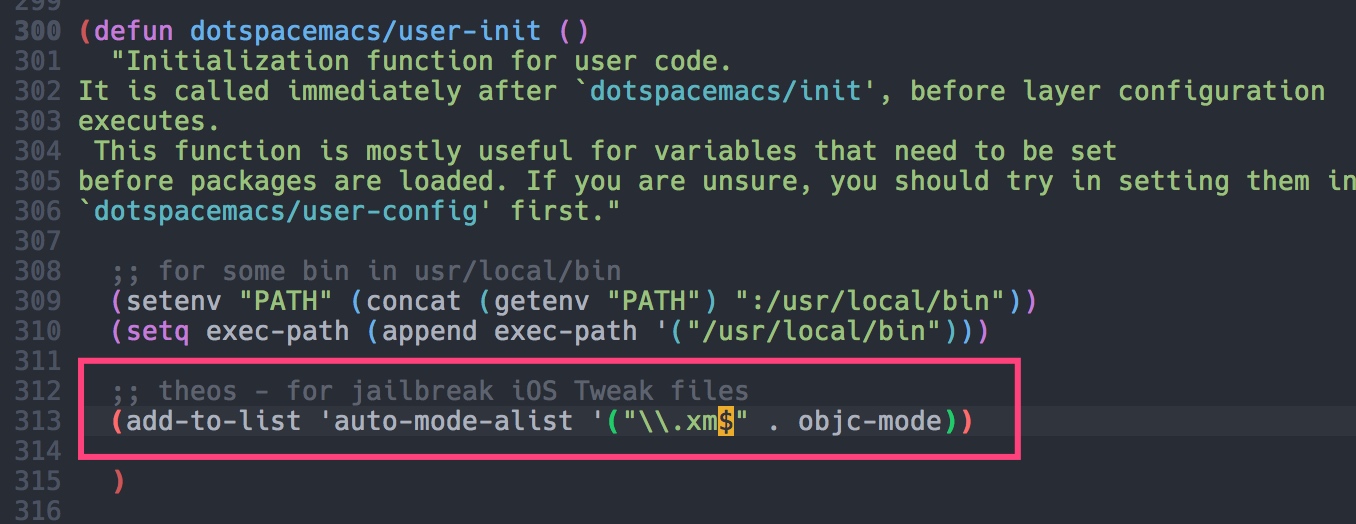
When I develop tweaks for jailbreak iOS , the source file extension is .xm , we could add lines below into dotspacemacs/user-init function , in order to let emacs auto set objc-mode when opening .xm file.
(add-to-list 'auto-mode-alist '("\\.xm$" . objc-mode))
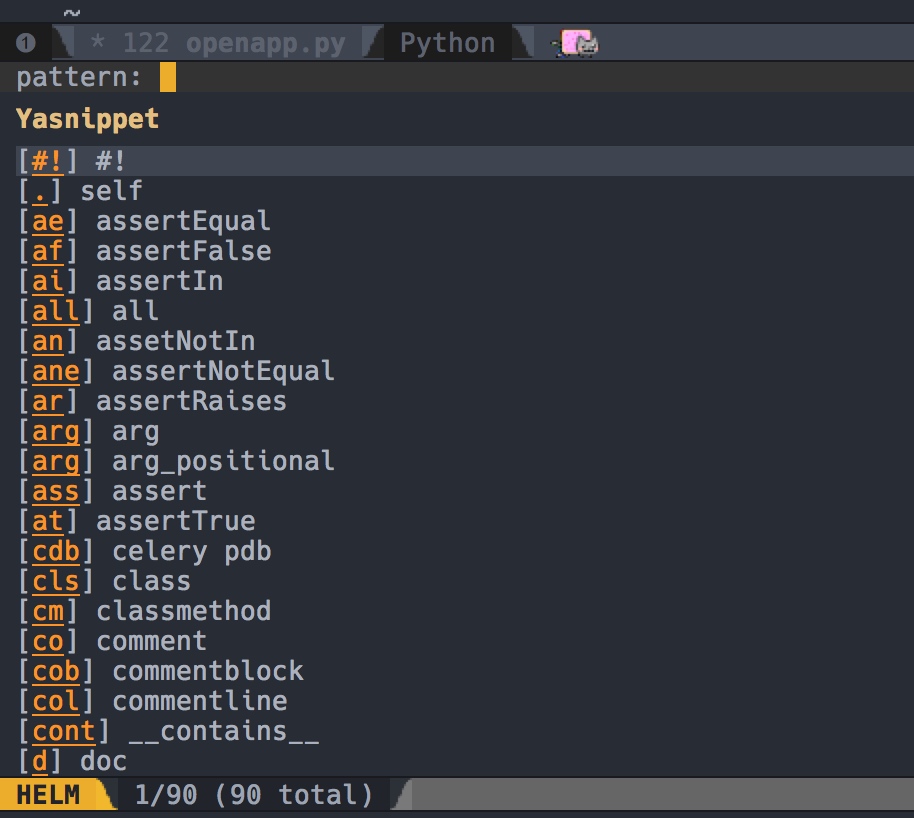
tip 4 : insert code snippet
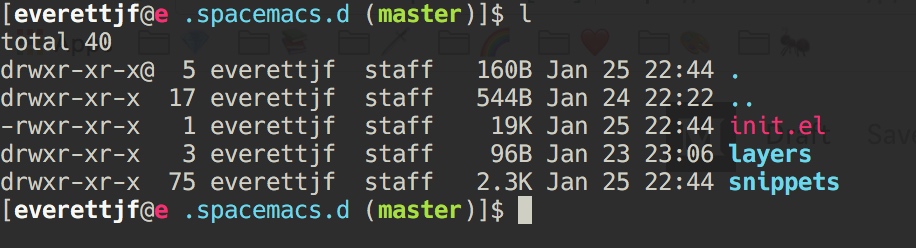
spacemacs include yasnippet automaticly, we could download the snippets from https://github.com/AndreaCrotti/yasnippet-snippets
Just copy the snippets folder to ~/.spacemacs.d as below :
 Now that’s all the installation.
Let’s use python source as an example :
- Open an python source file : test.py
- Type SPC i s,and you could see :
- Type
#and thenRET, will insert :
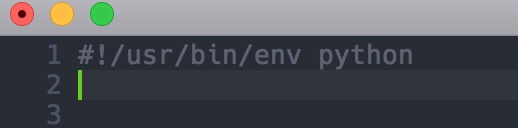
That’s all.
And useful snippets like : ifm m cm cls …
背景
安装
第零步: 安装最新的emacs。
brew install emacs --with-cocoa
第一步: 首先确保Home目录下没有.emacs文件和.emacs.d目录,可以先执行下面的命令删除。
rm -rf .emacs.d
rm .emacs
第二步:
git clone <https://github.com/syl20bnr/spacemacs> ~/.emacs.d
第三步:
运行emacs。 稍等片刻会有三个提问,都回车默认即可。
基本概念
C-n 表示Ctrl键的同时,按下字母键n。
M-x 表示Option键(alt键)的同时,按下字母键x。
<spc> f f 表示先后按下空格键、字母键f、字母键f。
<ret> 回车。
基本操作
取消命令
C-g 如果在输入某个快捷键中途出错,可以用这个取消。
光标上下左右
上 k 或者 C-p
下 j 或者 C-n
左 h 或者 C-b
右 l 或者 C-f
(pnbf就是previous、next、backward、forward)
打开或新建文件
<spc> f f
保存文件
<spc> s s
多个文件间切换
<spc> b b 列出所有打开的文件
然后C-n、C-p选择,或者输入字符过滤,最后
回到上一个打开的文件
<spc> <tab>
可以多次执行来回切换。
分屏,移动焦点,关闭当前分屏
<spc> w / 右侧分屏
<spc> w - 下侧分屏
<spc> w V 右侧分屏,并移动焦点到右侧
<spc> w S 下侧分屏,并移动焦点到下侧
<spc> w d 退出当前分屏
<spc> 1 切换到编号1的分屏,2、3、4以此类推,每个分屏左下角有编号
<spc> w m 只保留当前分屏
如何改变字体大小
<spc> z x 弹出选项,=放大,-缩小,0恢复
打开.spacemacs配置文件
<spc> f e d
搜索
// 文件内容不多时,基本够用。但文件内容较多(例如文件1MB以上)就慢了
<spc> s s

// 使用grep,性能好,适合大文件
<spc> s g b 对当前打开的所有buffers
<spc> s g g 对当前文件

// 使用ag,性能更好
<spc> s a b 对当前打开的所有buffers
<spc> s a a 对当前文件
替换
M-x replace-string
编辑
u 撤销
C-r 重做

g c c 注释、反注释
目录树
<spc> f t 打开关闭目录树
<spc> p t 定位到工程目录
project工程
在某个目录下创建.projectile空白文件,或者包含.git目录的文件夹会自动识别为工程根目录。
<spc> / 工程内查找
<spc> * 工程内查找当前光标所在文字
<spc> p R 工程内替换
<spc> p f 工程内定位文件

<spc> p p 多个工程切换
工程列表存在于下面的文件:
.emacs.d\.cache\projectile-bookmarks.eld
空格分隔。
基本配置
默认窗口最大化
配置文件中修改以下任意一项
dotspacemacs-maximized-at-startup t 最大化
dotspacemacs-fullscreen-at-startup t 全屏最大化
选择layer
配置文件中修改
   dotspacemacs-configuration-layers
   '(
     helm
     auto-completion
     better-defaults
     emacs-lisp
     git
     markdown
     org
     syntax-checking
     python
     javascript
     c-c++
     )
安装SourceCodePro字体
https://github.com/adobe-fonts/source-code-pro
nyan cat
     (colors :variables
             colors-enable-nyan-cat-progress-bar t)
日常小需求
过滤日志
- 把大文件拖入emacs。
<spc> s g b可以grep。
模糊定位文件夹中的文件
- 在目标文件夹创建.projectile空白文件。
<spc> p f定位文件。
查找、替换文件夹中的所有文件
- 在目标文件夹创建.projectile空白文件。
<spc> /文件夹中查找。<spc> p R工程内替换。
logos 语法
;; theos - for jailbreak iOS Tweak files
(add-to-list 'auto-mode-alist '("\\.xm$" . objc-mode))
后续补充
2018年1月补充,或许是最后一次补充。因为对我的使用习惯来说,我发现SpaceVim完全可以替代spacemacs了
tip 1 : commit repo by magit
It was almost one year since I ,as a really nood for emacs, feel disappointed for spacemacs, all because of that I can not commit my git repo ( using magit).
Today I finally complete it. This is the phases below :
SPC g s to see the status of current project
S to stage all files.
c c to commit, and edit the commit message ( must add some words)
, , to really commit
Yes , I can.
And I also can push origin master by P p
tip 2 : use atom-one-dark-theme for spacemacs
Since atom-one-dark-them has not been included in any layers , we can add this package in additional region below :
dotspacemacs-additional-packages '(
                                      atom-one-dark-theme
                                      )
Then, add atom-one-dark as the first dotspacemacs-themes :
dotspacemacs-themes '(
                      atom-one-dark
                      spacemacs-dark
                      spacemacs-light
                      )
Ok, restart emacs ( by SPC q r) , we will see the installing progress ,then it’s atom-one-dark time.
tip 3 : objc-mode for xm files (iOS tweak dev)
When I develop tweaks for jailbreak iOS , the source file extension is .xm , we could add lines below into dotspacemacs/user-init function , in order to let emacs auto set objc-mode when opening .xm file.
(add-to-list 'auto-mode-alist '("\\.xm$" . objc-mode))
tip 4 : insert code snippet
spacemacs include yasnippet automaticly, we could download the snippets from https://github.com/AndreaCrotti/yasnippet-snippets
Just copy the snippets folder to ~/.spacemacs.d as below :
Now that’s all the installation.
Let’s use python source as an example :
- Open an python source file : test.py
- Type SPC i s,and you could see :
- Type
#and thenRET, will insert :
That’s all.
And useful snippets like : ifm m cm cls …